
Guide to Setting up Parental Controls on iPhone
You can set up the content privacy and restrictions, manage app store purchases, add restrictions on games, and limit the website for parental control on your iPhone. These settings are ideal to keep your kids away from inappropriate content.
In this digital age, there’s nothing more tricky than kids using smartphones. Setting up the parental controls on an iPhone is essential for your kids' safety and to control their screentime.
In this article, I will explain the essential steps to keep your kids safe with iPhone parental controls.
What You Need Before Setting Up Parental Controls?
Here are the things you need to go through before setting up parental control.
- Ensure to update your iPhone to the latest iOS version.
- The device should be signed in with an Apple ID.
- It's recommended to create the child's Apple ID.
- Set the screen time passcode and lock screen.
These settings will ensure smooth syncing and prevent errors.
Set Up Parental Controls on iPhone (Step-by-Step)
Set up the Screen Time on iPhone
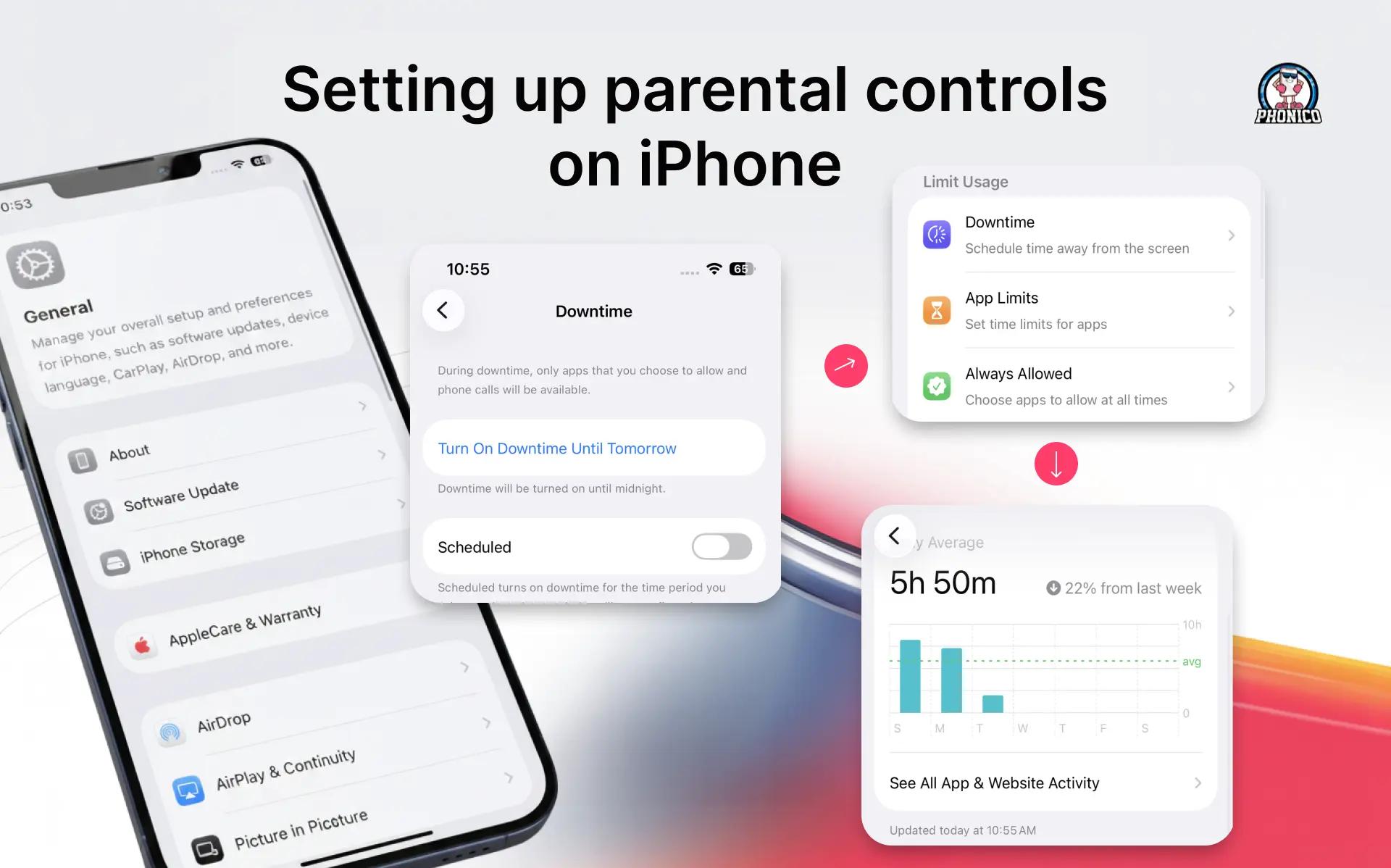
Setting up the screen time on your iPhone lets you see how long your kid has been on their phone. It also informs about how much a kid spends on the specific app. It ensures that to set the downtime and prevent your kids from spending the whole day scrolling.
Here is how you can set up the screen time.
- Open the Settings app and scroll to Screen Time.
- Select it and look for the Limit Usage.
- Here, enable the app and website activity.
- You can also select from Downtime, App Limits, Always Allowed, and Screen Distance features.
You create the passcode, and it will ensure that your kids can’t disable the limits. You can also lock all the settings that make it difficult for the kids to change the permissions.
Family Sharing on an iPhone
Family sharing is the feature that lets the main account holders share the subscription with other members. It lets you keep an eye on your kids' mobile phone activities. You can manage their account, online activity, app store purchases, and screen time.
To set up family sharing, create the family group first on your iPhone. Here is how you can set it.
- Open the Settings app.
- Tap your name and scroll to look for the Family.
- Tap the Set Up Family.
- Now, according to the instructions, you can add the family members.
Now, it is easy to set up parental control.
Enable Family Sharing
Setting up parental control on an iPhone is perfect for monitoring your kids' screen time. You can have control over app purchases and privacy settings. You can set up the control directly from your iPhone if family sharing is enabled.
- Open the Settings app.
- Tap on your name and scroll to Family Sharing.
- Click on the kid's name and adjust the Parental Control.
Set up Communication Limits on iPhone
Kids love their best friends and keep texting them all night. So, setting the communication limit is ideal. Here is how you can do it.
- Open the Settings app and scroll to Screen Time.
- Now scroll to Communication and click the Communication limit.
- Here you can set the limits on FaceTime, Messages, and iCloud contacts.
- In Communication, you can also enable the Communication safety.
Limit Websites on iPhone
iPhone offers the feature to block some websites for your kids' safety. Here is how you can do this.
- Open the Settings app on your iPhone.
- Look for the Screen Time and select it.
- Click the Content & Privacy Restrictions.
- Now move to the App Store, Media, Web & Games.
- Click the Web Content.
- Now select the Limit Adult Websites or Only Approved Websites.
Manage App Store Purchases
While setting the parental control, you should not miss managing the app store purchase. Here are the steps you can follow.
- Open Settings and tap Screen Time and select it.
- Click the Content & Privacy Restrictions.
- Now click the iTunes & App Store Purchases.
- Here you can check the permission for the app install and delete, and the in-app purchases.
Add Restrictions to Gaming
Kids love playing games, and when you get the phone back, the common reaction is that they get overstimulated. To avoid this, you can set the gaming restriction. It will also prevent them from communicating with strangers.
- Open the Settings app.
- Click and select the Screen Time.
- Click the Content & Privacy Restrictions.
- Now move to App Store, Media, Web & Games.
- Scroll to Game Centre.
- Here you can set the time limits, disable private messaging, multiplayer games, and prevent adding friends.
Set up iPhone Content and Privacy Restrictions
Here is how you can keep your kids' information safe.
- Open the Settings and move to Screen Time, and select it.
- Click Content & Privacy Restrictions and toggle to turn it on.
- Look for the privacy. Here, you can set privacy for Location, Tracking, and Apple Advertising.
Managing Mobile Data & SIM Access on Your Child’s iPhone
Parents overlook the SIM card and data safety. With a physical SIM card, it's easy for kids to switch networks. An eSIM card is a digital SIM embedded into the device and can’t be removed. Comparing eSIM vs physical SIM, eSIM is more secure and ensures to provide a smooth connection.
Your kids can’t remove it, and you can control the network access. It strengthens parental control and device supervision. If you are switching to an eSIM card, you must have an eSIM-compatible phone.
eSIM technology is ideal for travellers to enjoy a secure and stable connection. Phonico is the carrier that offers eSIM data plans for travel to the USA. If you are planning the next trip with your family to the USA, Phonico will ensure to provide you secure connection with unlimited benefits.
Conclusion
Setting up parental Control on your iPhone is perfect to keep your kids digitally safe. You can block websites, manage communication limits, control App Store purchases, and secure mobile data through eSIM.
In the article, I have discussed these details step by step to help you create a safe and healthy smartphone environment.
FAQs
Is parental control available on iPhone?
Yes, parental control is built into the iPhone, iPad, and Mac. It lets you monitor kids' digital activities like downloads and purchases, and with whom they are communicating.
Can my child disable parental controls?
Yes, your childern can disable parental control if they know the passcode or are old enough to access certain phone settings.
How do I block YouTube or TikTok for parental controls?
You can use the App Limit or Downtime parental control features to block YouTube or TikTok.