
iPhone Accessibility Settings: Easy Tweaks for Better Visibility, Control & Faster eSIM Setup
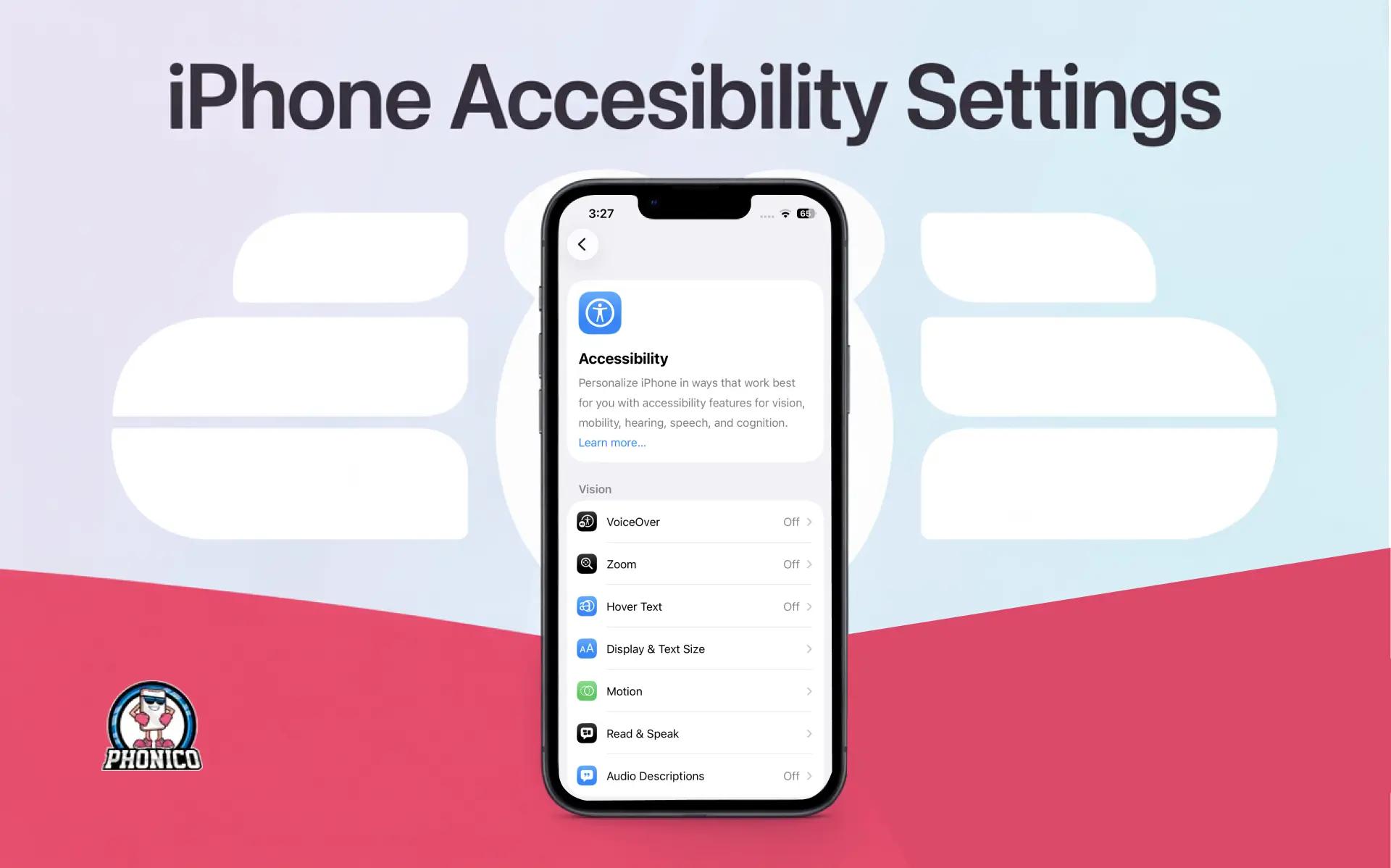
Make your iPhone perform fast and smooth, right now! Open Settings → Accessibility. From here, you can turn on features like Magnifier, VoiceOver, AssistiveTouch, larger text size, or a quick accessibility shortcut with a simple triple-click.
Just remember, using and adjusting iPhone accessibility settings wisely will support fast and reliable eSIM connectivity.
What Are iPhone Accessibility Settings?
Most people don’t open the Accessibility menu because they don’t have any idea. But they have issues with tiny text, glare, shaky hands, or a screen that feels too busy. Apple keeps in mind the people with disabilities, and designed the iPhone accessibility settings to help anyone make the phone easier to use.
A slightly larger text size, a clearer display, or a shortcut that saves two taps. These tweaks genuinely change how smoothly you move through your day. If you travel often, work long hours on your phone, or juggle apps all day, a few smart adjustments go a long way.
And here’s where things tie into connectivity. Travelers who rely on navigation, translation apps, or cloud backups need stable service. So how can you stay synced and uninterrupted with an eSIM & iPhone accessibility settings? This blog will tell you all!
How to Access iPhone Accessibility Settings (Fastest Method)
Since iPhone users are more familiar with the settings menu, Apple hides every powerful feature in one place:
Settings → Accessibility
This is where you manage everything. The vision tools, hearing support, touch alternatives, mobility features, and your main access settings.
If you want the fast version, set up the accessibility shortcut now. It takes 20 seconds:
1. Go to Settings → Accessibility
2. Scroll down to Accessibility Shortcut
3. Choose the feature you want to toggle instantly
4. Triple-click the side button (or the home button, if your iPhone has one)
That’s it. One quick tap sequence, and you can turn on accessibility features without digging through menus.
Best iPhone Accessibility Settings to Improve Daily Use
Every iPhone has dozens of tools here, but you don’t need all of them. You just need the ones that make your daily use smoother. The following are the essentials:
VoiceOver (Screen Reader) - For Eyes-Closed Navigation
VoiceOver reads whatever’s on your screen aloud. Swipe left or right to move between items, double-tap to select, and use simple gestures to move around. It’s not only for blind users but also great when you’re multitasking, cooking, or dealing with small text.
Magnifier - Your Built-In Visual Zoom Tool
Magnifier turns your camera into a real-time zoom lens. Perfect for menus, product labels, receipts, or anything printed too small. Add it to Control Center for one-swipe access.
Text Size & Display Adjustments - Fix Small Text Once and For All
If your eyes feel tired, bumping text size up even slightly makes a noticeable difference. You can increase it system-wide or per app, depending on your comfort.
AssistiveTouch - Your Virtual Button Panel
If your buttons stick, your screen protector interferes, or you want shortcuts on-screen, AssistiveTouch helps you tap, pinch, drag, and more without using physical gestures.
Back Tap - The Secret Shortcut Most People Miss
Double or triple-tap the back of your phone to trigger an action, screenshot, flashlight, or even a quick accessibility shortcut.
Hearing Support - Clearer Calls and Real-Time Captions
Live Listen, headphone accommodations, mono audio, and Live Captions help you follow conversations even in loud environments.
How Accessibility Settings Make Travel Easier (Especially With eSIMs)
Most people think of accessibility features as tools they use at home or work. But they’re incredibly useful when you’re traveling, especially if you’re switching networks, scanning QR codes, or relying on navigation all day.
If you use eSIMs when you travel (and you should), accessibility settings play right into that smooth experience. Let me share with you how accessibility settings improve iPhone eSIM setup:
Clearer Screens When You’re Out in Sunlight
A brighter display, bold text, or lower motion can make maps, boarding passes, and translations easier to see outdoors.
One-Step Tools When You’re in a Rush
Triple-click shortcuts let you open Magnifier, increase text size, or launch your screen reader without digging through menus while you’re on the move.
Hands-Free Navigation
VoiceOver and spoken content help when you’re walking through streets, carrying bags, or handling tickets.
Better Touch Support With Gloves, Wet Hands, or Cold Weather
AssistiveTouch beats fumbling with physical gestures at the airport door or during winter travel.
All of this matters even more for travelers using an eSIM plan because your phone needs to be easy to operate anywhere.
Note: These settings work on iOS 16, iOS 17, and the latest iOS 18 interface.
iPhone Accessibility Settings + eSIM: Why They Work Better Together
Let’s learn how accessibility settings make eSIM usage simpler and how eSIM usage supports accessibility in return.
eSIMs Don’t Require Physical Handling
If you prefer digital-first tools or have trouble swapping a physical SIM card, an eSIM is instantly easier. No trays, no pins, no tiny cards to lose.
Scan a QR Code, and You’re In
Since eSIMs install with a QR code or activation code, your accessibility settings (Magnifier, Zoom, text size) help you read or scan them with far less stress.
Switching Between Lines Is Cleaner
If you keep multiple profiles (work, travel, personal), your Accessibility Shortcut gives you faster access to whatever feature helps you verify which line is active.
Phonico Wins Here
Phonico’s eSIMs work smoothly with all iPhones that support eSIM. They don’t force you through messy screens or complicated activation steps. You scan, install, turn on mobile data, and stay connected. Get full control through the Phonico App available for both Android and iOS.
Quick iPhone Tips for Better Visibility, Touch & Control
The following are the quick tips that will help you a lot:
- If the text feels too small: Increase text size once - it changes the entire phone’s usability.
- Struggle with bright conditions: Turn on Bold Text and Increase Contrast.
- If tapping is uncomfortable: Enable AssistiveTouch and use your screen with simple taps.
- Want faster access to features: Set up an accessibility shortcut with a triple-click.
- If you travel often: Pair your settings with an eSIM so you don’t have to stress over SIM trays or local cards. Phonico eSIM handles your connectivity quietly in the background.
Conclusion:
Small changes in your iPhone’s accessibility settings can make a bigger difference than most people expect. When your screen is easier to read and your shortcuts fit the way you move, everything feels quicker and less tiring.
And if you pair those tweaks with a reliable eSIM like Phonico, you stay connected without touching a SIM tray or hunting for local cards. Simple, smooth, and ready whenever you are.
FAQs
How do I reset Accessibility settings on my iPhone?
You can reset your iPhone accessibility settings by going to Settings > General > Transfer or Reset iPhone > Reset > Reset All Settings. This brings everything, including visibility and touch controls, back to default. It’s a quick fix if something changed during your iPhone eSIM setup or while adjusting iPhone visibility settings for travel.
How do I reset Accessibility settings on an iPhone running iOS 15?
On iOS 15, resetting your iPhone accessibility settings is the same: Settings > General > Transfer or Reset iPhone > Reset All Settings. It restores system preferences without touching your data or your travel eSIM for iPhone, so your connection stays active.
How can I change Accessibility settings on my iPhone?
To adjust your iPhone accessibility settings, go to Settings > Accessibility. Here you can change visibility tools, motion preferences, display options, and more. These settings can be helpful when completing an iPhone eSIM setup or using a travel eSIM for iPhone, especially if you need clearer menus or easier navigation.
How do I turn off Accessibility settings on my iPhone?
Open Settings > Accessibility and turn off the tools you don’t need, like Zoom, VoiceOver, or AssistiveTouch. If multiple visibility or motion tools were enabled by accident, you can switch them off individually or reset your iPhone accessibility settings completely. Everything stays intact, including your travel eSIM for iPhone and network setup.