
Smart Android Accessibility Settings Tips That Make eSIM Setup Easier Than Ever
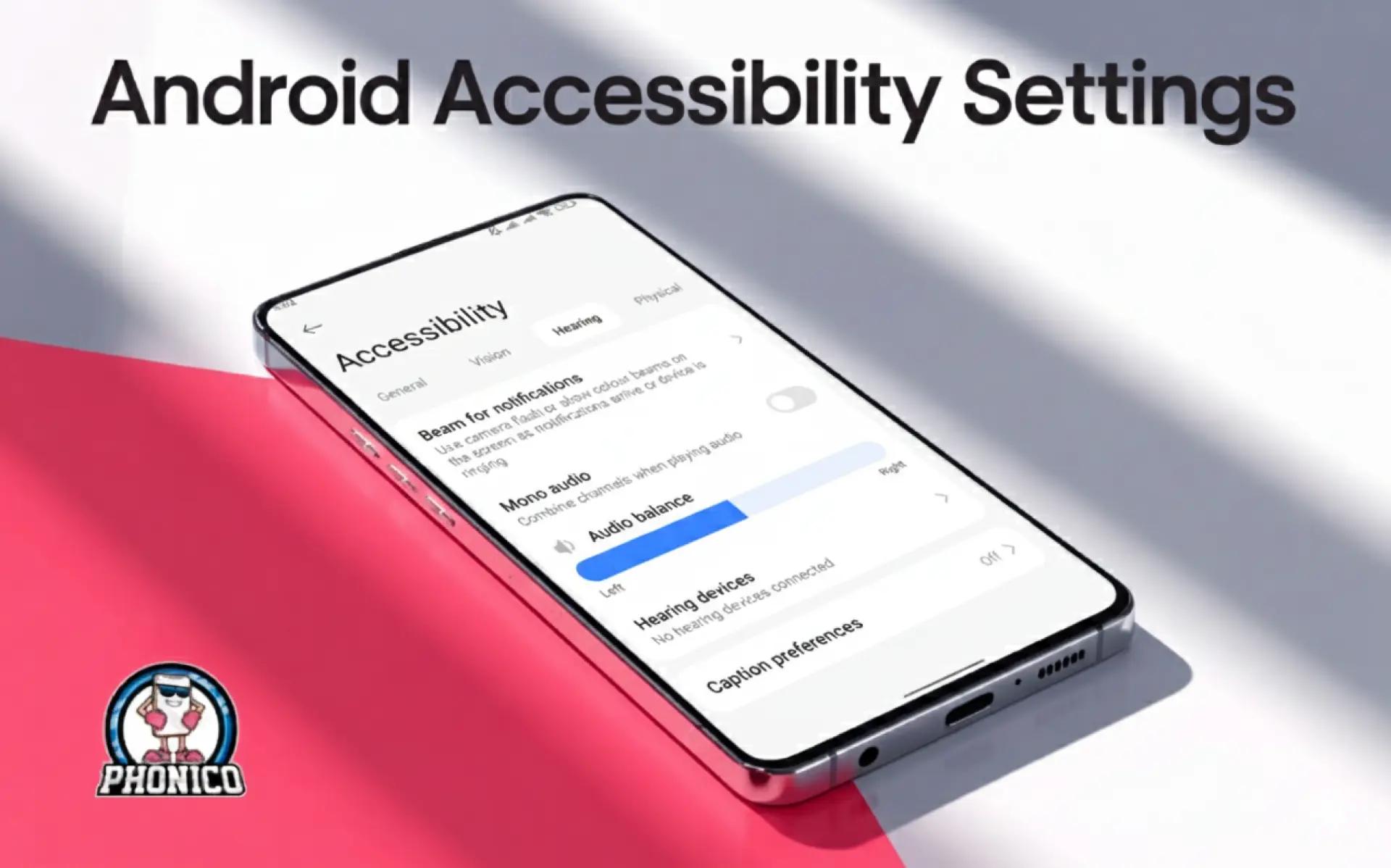
With Android accessibility settings, you can customise your phone so it’s easier to read, hear, and navigate. You can enlarge text, use a screen reader, adjust colour contrast, turn on voice controls, and simplify touch gestures. These tools also help when setting up an eSIM, making QR codes easier to scan, switching profiles clearer, and managing mobile data more straightforward.
Travelling and eSIM have a deep connection when it comes to saving money and super convenience. All you need is an eSIM-compatible Android or iOS device to get rid of roaming charges. But users are still curious about the full usage control of eSIM.
To end this issue forever, I have gathered some tips for eSIM users regarding the Android accessibility settings. This blog will teach you about the tips to control activation and usage with device accessibility features while using a Phonico eSIM.
How Android Accessibility Settings Improve Your eSIM Setup Experience?
Most people never touch their accessibility settings. Because they dont know how effective that would be. Let me tell you about the Android accessibility settings that will boost the eSIM activation process while increasing your device efficiency as per your command.
Make Text and On-Screen Details Easier to Read
Increase font size, bold text, or boost contrast to make on-screen details clearer. This helps when activating an esim plan, checking travel details, or managing your data plans while moving between countries. Go to Settings > Accessibility > Text and display to adjust font size, bold text, and contrast.
Use TalkBack for Voice-Guided eSIM Setup
Using Phonico eSIM with TalkBack gives voice feedback for everything you tap. If you use a screen reader, this cuts the need to stare at your phone during setup or when switching networks. Go to Settings > Accessibility > TalkBack and switch it on for voice-guided navigation.
Simplify Touch and Navigation With Gesture Tools
Gesture controls can feel complicated when you’re stressed or multitasking. Tools like Assistant Menu and simplified gestures keep things precise, especially when you need to adjust settings fast. Go to Settings > Accessibility > Interaction and dexterity to activate the Assistant Menu.
Use Voice Commands for Hands-Free eSIM Control
Voice Access makes it easy to open apps, adjust network settings, or change your eSIM profile when you can’t use both hands.
These simple changes aren’t just for accessibility. They make travel, staying connected, and long-term device use much smoother. And for anyone using an eSIM-compatible Android phone, these tweaks turn setup and switching between networks into a quick, stress-free task.
Android Accessibility Features That Simplify QR Scanning and eSIM Controls
Unsecure Airport Wi-Fi, new surroundings, & bags in hand could lead to anxiety before activating your Phonico eSIM. Accessibility tools quietly remove that pressure.
A few adjustments in your Android accessibility settings can make the whole process easier and quicker.
High-Contrast Mode for Better QR Code Scanning
High-contrast mode helps your camera pick up every detail when scanning the QR code for your eSIM. It also makes carrier instructions easier to read in bright outdoor settings. Go to Settings > Accessibility > Text and display > High contrast mode to make visuals clearer.
Magnification Tools for Reading Small Activation Text
Carrier emails, activation codes, and network instructions often include tiny characters. Magnification lets you zoom in with one tap, so you never mistype or misread something important. A special help feature for old lads with weak eyesight. Go to Settings > Accessibility > Magnification and enable pinch-to-zoom or gesture magnification.
Gesture Shortcuts for Faster SIM Manager Access
You can assign simple gestures to open your SIM manager. Switch between multiple profiles, or check your network status in seconds. This is especially handy if you're juggling maps, tickets, and mobile settings at the same time. Go to Settings > Accessibility > Accessibility Menu and turn on the shortcut gestures you want to use.
Changing these accessibility settings can lead you to peace of mind. You will have full control of your Android device, and your Phonico eSIM will be activated with ease.
Key Android Settings Every Traveller Should Enable for Smooth eSIM Use
Android gives you more control than most people realise. You just need a few smart settings to keep your eSIM experience stable wherever you go.
Strong network detection
Android’s updated network menu ensures your phone finds the most reliable signal available. This is essential when a local SIM isn’t an option and you’re depending fully on your eSIM for calls, navigation, and check-ins. Go to Settings > Network & Internet > SIMs to confirm your network status and switching behaviour.
Data usage monitoring
Keeping an eye on your mobile data prevents bill shock, especially when roaming. You can set limits or alerts to match your travel needs, whether your trip is short-term or long-term. Go to Settings > Network & Internet > Data usage to view usage, limits, and alerts.
Automatic line switching
Some phones can switch intelligently between your eSIM and another line. If your device supports esim properly, you can prioritise one line for data and keep another active for calls. Go to Settings > Network & Internet > SIMs and select which line should handle data or calls.
Built-in backup for eSIM details
Android lets you sync your network preferences securely with your data plans, making it easier to restore your eSIM if you ever switch devices or reset your phone. Go to Settings > System > Backup to sync SIM and network preferences to your Google account.
These settings give you quite reliability in background so you can focus on travel, not troubleshooting.
How Accessibility Tools Improve eSIM Activation While Travelling
Travel puts you in situations where quick fixes matter. A few Android accessibility options can keep you moving without slowing down.
Busy streets and bright sunlight
In crowded
, you don’t always have a free hand to adjust your screen. Larger text and colour contrast make it easier to read your network details at a glance.
Late-night check-ins or long flights
Dim environments are tough on your eyes. Features like dark mode and the screen reader help you manage your eSIM settings without straining, especially when you’re tired or jet-lagged.
Navigation on the go
When you're switching routes or checking maps in motion, gesture shortcuts let you open your SIM manager or change networks instantly.
Accessibility settings aren’t only for specific needs. They’re practical tools that make travel smoother for everyone.
Simple eSIM Setup Tips to Avoid Travel Delays and Connection Issues
Installing an eSIM is simple, but a few small steps can save you from unnecessary delays.
Download your eSIM before the trip.
Airports don’t always have stable Wi-Fi. Activating your eSIMs offer at home means your phone connects the moment you land.
Check network compatibility early.
Make sure your device is esim compatible and supports the bands used in your destination. A quick check avoids connection surprises when you arrive.
Keep a backup connection.
Even with a good esim plan, it helps to keep your home number active for verification texts or banking access. Android makes switching lines smooth, even with limited service.
Have your travel documents handy.
Some countries require verification before your eSIM becomes active. Keeping your passport info ready speeds up the process.
These steps remove the uncertainty many travellers feel when relying on digital connectivity abroad.
Long-Term Android Accessibility Habits That Make Travel Easier
If you travel often, building a few habits around accessibility settings can make every trip easier.
Customise once, save time for months.
Most tools stay active across devices once synced with your Google account, so you don’t have to reset everything each time.
Create your own travel preset.
Some travellers keep a “travel mode” with larger text, amplifying gestures, and simplified menus, easy to switch on before boarding.
Use voice shortcuts when carrying luggage.
You can ask your phone to open your SIM manager or check your mobile data status without tapping a single button.
Combine accessibility with battery care.
A few features, like reduced animations, help with both usability and battery life during long stretches without a charger.
These small adjustments make your phone more intuitive, even when you’re moving through unfamiliar places.
How Phonico eSIM Supports Android Users Who Rely on Accessibility Tools
Phonico is built for travellers who want simple digital connectivity without dealing with long queues or juggling a physical SIM card.
Straightforward setup
Our activation process works cleanly with Android’s accessibility shortcuts, whether you use audio guidance, larger text, or magnification.
Plans designed for easy switching
Frequent travellers love having multiple profiles, and Phonico supports easy switching between local and international lines.
Reliable roaming without confusion
Our network partners give consistent speeds, so you stay focused on your trip instead of whether your SIM is working.
Support that understands accessibility needs
If something doesn’t work, our team can guide you through each step clearly. Just click help or WhatsApp Phonico team by clicking on the link on the website and in the App.
Conclusion
Travel gets a lot easier when your phone works the way you need it to. A few quick accessibility tweaks can make activating and managing your Phonico eSIM smoother. With clearer text, simpler gestures, and voice-guided steps, you stay connected without the stress.
Phonico eSIM for the USA keeps the setup simple, the connection steady, and your travel experience hassle-free.
FAQs
What are Android accessibility settings?
Android accessibility settings are built-in tools that make your phone easier to see, hear, and control. They include features like larger text, magnification, TalkBack, contrast modes, and simplified gestures. For Phonico eSIM users, these tools make activation clearer, especially when scanning QR codes, reading setup instructions, or switching between travel data plans.
How do I turn off accessibility in Android?
You can turn off any accessibility feature by going to Settings > Accessibility, selecting the feature (like TalkBack, Magnification, or Switch Access), and tapping Turn Off. If something was turned on accidentally during your Phonico eSIM setup, this gives you quick control without affecting your eSIM or mobile data.
What happens if I reset accessibility settings?
Resetting accessibility settings simply restores everything back to default. Turning off features like bold text, colour contrast, screen readers, or gesture shortcuts. It does not erase your Phonico eSIM, your data plan, or your phone settings. It’s a safe way to start fresh if too many features were turned on by mistake.
Do I need the Android Accessibility app?
Most Android phones already include accessibility tools in the system settings. So you don’t need a separate app. Everything needed for easier eSIM setup (zooming in on QR codes, improving visibility, using voice control, etc.) is already built in. Optional apps only help if you want extra customisation, but they're not required for activating or using a Phonico eSIM.