
How to install eSIM on iPhone 17?
Installing eSIM on iPhone 17 is as simple as in other iPhone models. You can manually add it to your phone or scan the QR code to set up an eSIM. iPhone 17 family, including iPhone 17 Pro, iPhone 17 Pro Max, and iPhone 17 Air, are sleek eSIM-only in some regions.
You don’t need to worry about managing multiple SIM cards. Apple’s eSIM technology replaces the need for a physical SIM and ensures convenience. iPhone 17 lets you connect throughout your travel with a single digital chip.
This article is a guide on how you can install eSIM on your iPhone 17. Similarly, the potential issues you can face and their solutions.
Does iPhone 17 Family Support eSIM?
An eSIM card is a digital chip embedded in the latest smartphones. Like other latest iPhone models, the iPhone 17 family supports eSIM technology. An iPhone with an eSIM card is travel-friendly, allowing for flexible connection.
The iPhone 17 series is eSIM-only in some regions, like the USA and some countries in Europe, without any SIM card slot. However, in some Asian regions, you can get the iPhone 17 with eSIM and a physical SIM card.
Here is some additional information to get a deep understanding of iPhone 17 series eSIM support.
iPhone 17
iPhone 17 supports eSIM technology.
Dual eSIM: Two active profiles
Carrier Lock/Unlock: Varies from region to region
SIM Slot: No SIM card in the US and EU, Hybrid in some regions
iPhone 17 Pro
iPhone 17 Pro supports travel eSIM.
Dual eSIM: Two active profiles
Carrier Lock/Unlock: Locked or unlocked according to purchase
SIM Slot: Retain the SIM slot in some regions
iPhone 17 Pro Max
iPhone 17 Pro Max supports an eSIM card.
Dual eSIM: Two active profiles
Carrier Lock/Unlock: Vary by purchase
SIM Slot: Retain the SIM slot in some regions, like China
iPhone 17 Air
iPhone 17 Air supports eSIM.
Dual eSIM: Two active profiles
Carrier Lock/Unlock: Vary by purchase
SIM Slot: Don’t have the SIM slot
Prep for eSIM Installation on Your iPhone
Be prepared to avoid any issues during eSIM installation.
Connect your drive to a stable WiFi
Ensure to keep your iPhone connected with a stable WiFi connection to install and activate your eSIM
Buy a reliable eSIM card
Select a reliable eSIM carrier and buy the eSIM plan. If you are specifically looking for the USA eSIM, Phonico is the well-known and trusted choice. The carrier offers eSIM data plans with free additional services of unlimited talk and texts.
You can visit the provider's official website to get the eSIM. Once you purchase the plans, the carrier will send the QR code, activation code, and SM-DP+ address to activate eSIM in your iPhone.
Unlock the device carrier
Ensure that your iPhone carrier is unlocked. With the locked carrier, the device is restricted to use only the carrier's network. Contact your carrier and confirm it before proceeding to eSIM setup.
How To Install eSIM on iPhone 17?
Here are three common methods you can use to activate eSIM on iOS 17.
Method 1: Install eSIM via QR Code
- Go to the Settings app.
- Click Cellular and Add eSIM.
- Open the phone’s camera and scan your carrier's QR code.
- Wait a moment, your iPhone will take time to download the profiles, and might ask for a confirmation code.
- Once it shows done, your iPhone is ready to get connected.
Method 2: eSIM Setup via Carrier App
- Download the carrier app and open it, and click to Set up or Activate eSIM.
- Choose the Cellular Service according to your needs.
- Enter the confirmation code, and you will be redirected to the profiles.
- Go back to the Settings and Cellular to verify data plan activation.
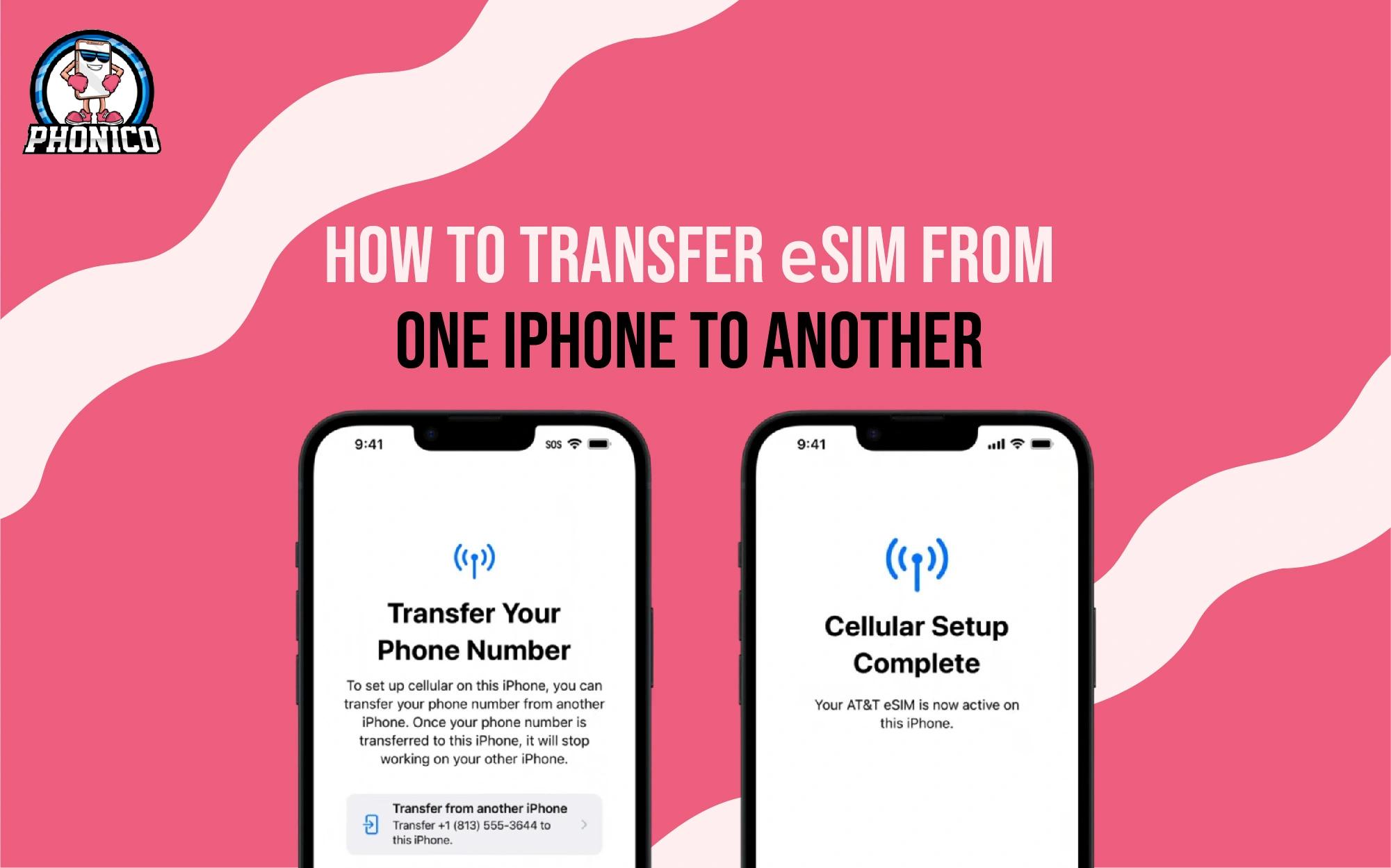
Method 3: Transfer eSIM from Old iPhone
Are you switching from your old iPhone to your new iPhone? It's simple: Apple offers eSIM quick transfer from old to new phone.
- Go to Settings on iPhone 17.
- Click to Cellular and Add eSIM.
- Tap Transfer from Nearby iPhone.
Ensure to keep both iPhones nearby and connected to a stable WiFi.
- On your old iPhone, you will get the request to transfer.
- Follow the on-screen instructions for the proceedings.
- You will get the notification when the eSIM is activated.
You can follow the given steps in iPhone 17 Pro and iPhone 17 Pro Max according to the settings.
Troubleshooting eSIM Installation Issues
After eSIM installation, you didn’t get the quick activation response. There might be multiple reasons behind this. Some of these include.
Software Glitches
Software issues can fail the embedded SIM activation, even if it's a minor issue. You can update the software to fix the issue.
Network Unavailable
An eSIM card is not support in all regions. Sometimes users face the network being unavailable, which generally happens due to regional restrictions. Ensure that your device is carrier unlocked.
Failed Digital SIM Setup
It generally happens when you miss the activation step or the eSIM has already expired. Recheck the activation steps and ensure to do it according to the carrier's instructions.
No eSIM Service
The network or eSIM profile issues lead to no service. You can check the network settings or restart the device to troubleshoot the issue.
Conclusion
iPhone 17 flagship models support eSIM technology. You can set up eSIM in your mobile via QR code, carrier app, or transfer it from your old phone to a new one. In the article, I have discussed each method in detailed steps to clarify it for you.
Whether you are a nomad, a business traveller, or a tech user, iPhone 17 with eSIM lets you avoid the hassle of managing multiple SIM cards. With a single digital card in your device, to can visit every corner of your destination country.
FAQs
How to check eSIM in iPhone?
Open the Settings > General > scroll to Available SIM or Digital SIM. In this section, check the IMEI. If it's listed, your iPhone has eSIM.
How many eSIMs can the iPhone 17 have?
The iPhone 17 stores more than eight eSIMs. However, only two can be active simultaneously.
How do I manually install eSIM on my iPhone?
Open Settings > Cellular > click Add Cellular Plan and select the manual eSIM setup. Enter the activation details, like SM-DP+ Address and activation code, in settings. Your iPhone will take a few minutes to process and install eSIM.