
How to turn your iPhone into a dumb phone?
Creating a new focus, customising the home screen, or enabling automation and grayscale can turn your iPhone into a dumb phone. If you are Gen Alpha and want to experience phones the way your grandfather did. It's ideal to cut out from your phone's addictive routine.
Dump iPhone lets you focus on the real world and avoid wasting time on social media apps. It will give you the new iPhone experience that will ensure you feel calm and distraction-free.
In this article, I will discuss what is dump phone is and the settings to turn your iPhone into a dump phone.
What is Turning Your iPhone Into a Dumb Phone?
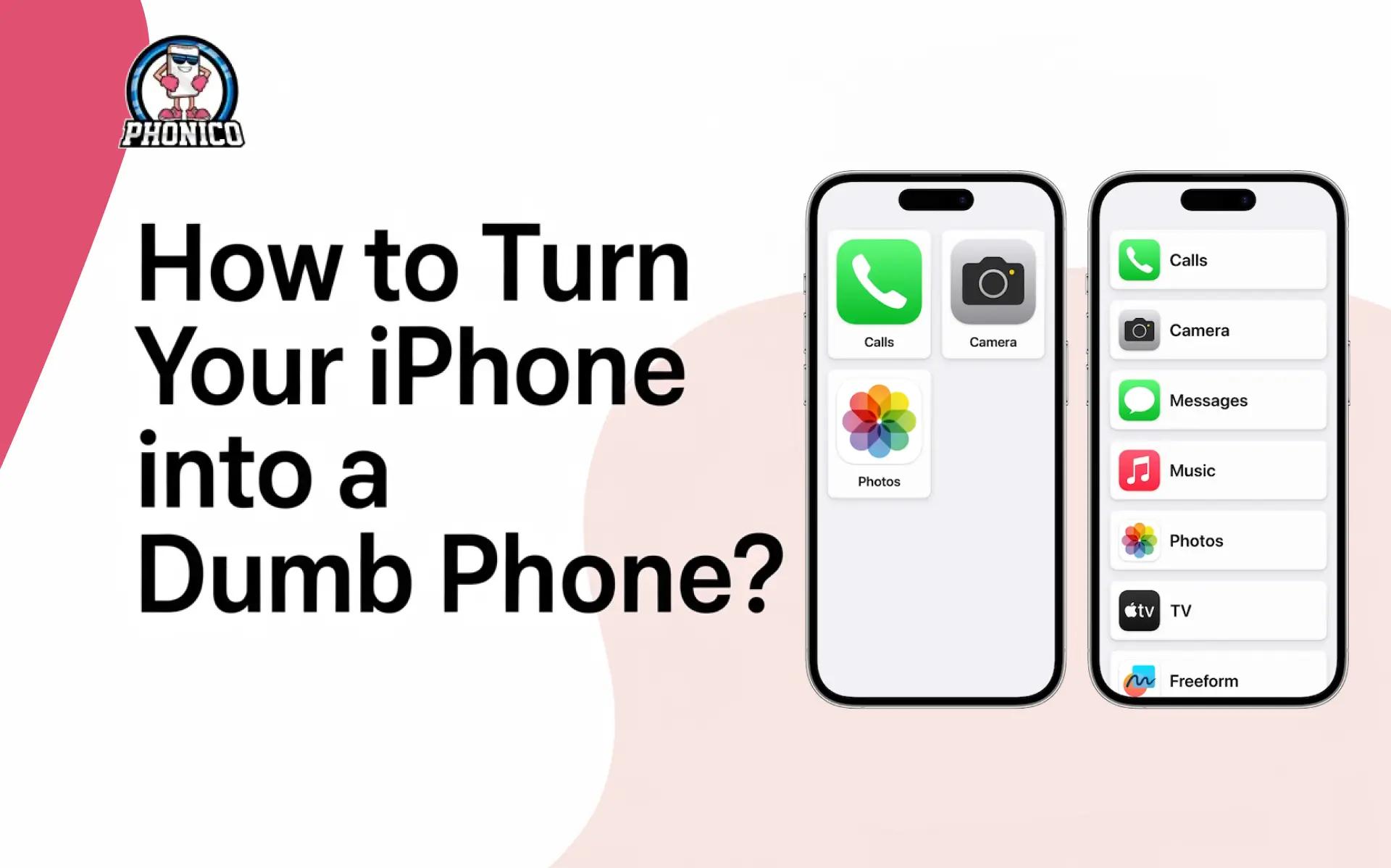
Dumb phone actually means reshaping the iPhone into a basic phone. The iPhone only has the essential features like calls, texts, the camera, and basic utilities. The device is helpful to avoid distractions like social media, app notifications, and colourful visuals.
You can turn your iPhone into a dumb phone via a pared-down home screen, limited apps on your iPhone, and strict focus modes.
How to turn your iPhone into a dumb phone?
Here are several settings that can help turn your iPhone into a dumb phone.
1. Create a new Focus on iPhone
You will create the new Focus feature to turn your iPhone into a dumb phone. Here are the steps you can follow.
- Open the iPhone Settings.
- Select the Focus and click the + button in the top right corner.
- Now select the Custom and name your new Focus Mode.
- Choose the colour and the icon of the mode.
2. Allow push notifications
Select the notification you want to allow on the dump iPhone. You can choose which app, and the contacts can still get through to you. Select the allowed people and apps on screen and tap Done.
3. Customise home screen on iPhone
Set the lock screen
Setting a different lock screen will make your new dumb phone. Select the simple black or gray lock screen compared to the fancy or colourful one.
Remove or Hide Non-Essential Apps
Remove the non-essential apps and customise the home screen with the pages and apps like Messages, Camera, Maps, and other basic utilities. Delete the distracting apps like social media, games, and entertainment apps.
4. Restrict apps you can’t delete
Some apps don't uninstall by default from the phone. To disappear these, you can do the following.
- You can enable the App Limits.
- Block the App Store or some specific categories.
- You can even block Safari to remove browsing.
5. Enable automations and grayscale
Enable the automation to dump your iPhone when a new focus is active.
- Open the Shortcuts app and tap the Automation tab.
- Click on the + button in the top right corner for the new automation.
- Scroll to find the Focus mode you created.
- Select the When Turning On and click the Run Immediately.
- Click the next button and select the New Blank Automation.
- Look for the Colour Filters, add the action Set Colour Filters, and toggle to turn it on.
- The grayscale filter is enabled by default; you can change it from the Settings.
- Now, find the Set Appearance and add the action to turn on dark mode.
6. Enable the new dumb phone mode in Control Centre
To switch between the different focus models, the option should be available in Control Centre. From here, you can enable the new focus to turn your iPhone into a dumb phone. You can add it back in with a few steps to remove this control.
- Long-press on the screen until the Control Centre opens in editing mode.
- Tap the Add a Control.
- Click on Focus when it appears to add to the control.
Tips to Maintain Your Dumb Phone Setup Long-Term
Avoid reinstalling apps you removed
Avoid reinstalling the removed apps, like social media, games, or entertainment platforms. If you reinstall the app, it will reset the cycle of scrolling and notifications.
Clear your Home Screen
Due to updates or downloads, apps creep back on your home page. Clean up your home screen weekly to keep it distraction-free.
Keep your wallpaper plain
Colourful, animated, and aesthetic wallpapers draw attention to unlock your phone. Set the grey, beige, or black colour to reduce the visual noise.
Enable dumb-mode when working, studying, or sleeping
Enable the dumb mode during activities like working and studying. It helps you avoid the bombarded with notifications or being tempted to open apps.
Does a Minimalist iPhone Setup work with eSIM?
An eSIM card is the ideal choice for the minimalist setup on your iPhone. It eliminates the need for local SIM cards and offers an intentional iPhone experience. If you are a traveller, it lets you switch carriers without managing multiple SMS for calling and texting.
eSIM is easy to activate in iPhone and Android devices with a QR code scan. It offers a safe and authentic connection with no data roaming cost.
Note: Phonico is a reliable carrier offers offers eSIM data plans for travel to the USA. If you are a travel enthusiast, it will be an ideal tool for you to stay connected. With the data plans, you can enjoy unlimited calls and text services with no data roaming cost.
Conclusion
You can simplify your iPhone into a dumb phone by customising the home screen, resetting the lock, and creating focus modes. Moreover, you can apply grayscale colour filters and dull your app icons to make your iPhone boring.
It is ideal to boost productivity and calm back to your daily routine. In this article, I have discussed the steps you convert your iPhone into a dumb phone. Ensure to read and follow each carefully to avoid any confusion.
FAQs
How do I turn my iPhone black and white?
You can turn your phone black and white from settings. Open Settings > Accessibility > Display & Text Size > Color Filters. Now enable the grayscale to reduce the visual engagement.
What apps should I delete to make my iPhone a dumb phone?
Delete the social media, games, streaming platforms, and shopping apps to make your iPhone a dumb phone.
Does using a minimalist setup reduce screen time?
Yes, a minimalist setup reduces screen time. It removes the digital clutter and the intentional designs that prompt your focus.