
How to send a voice message on iPhone?
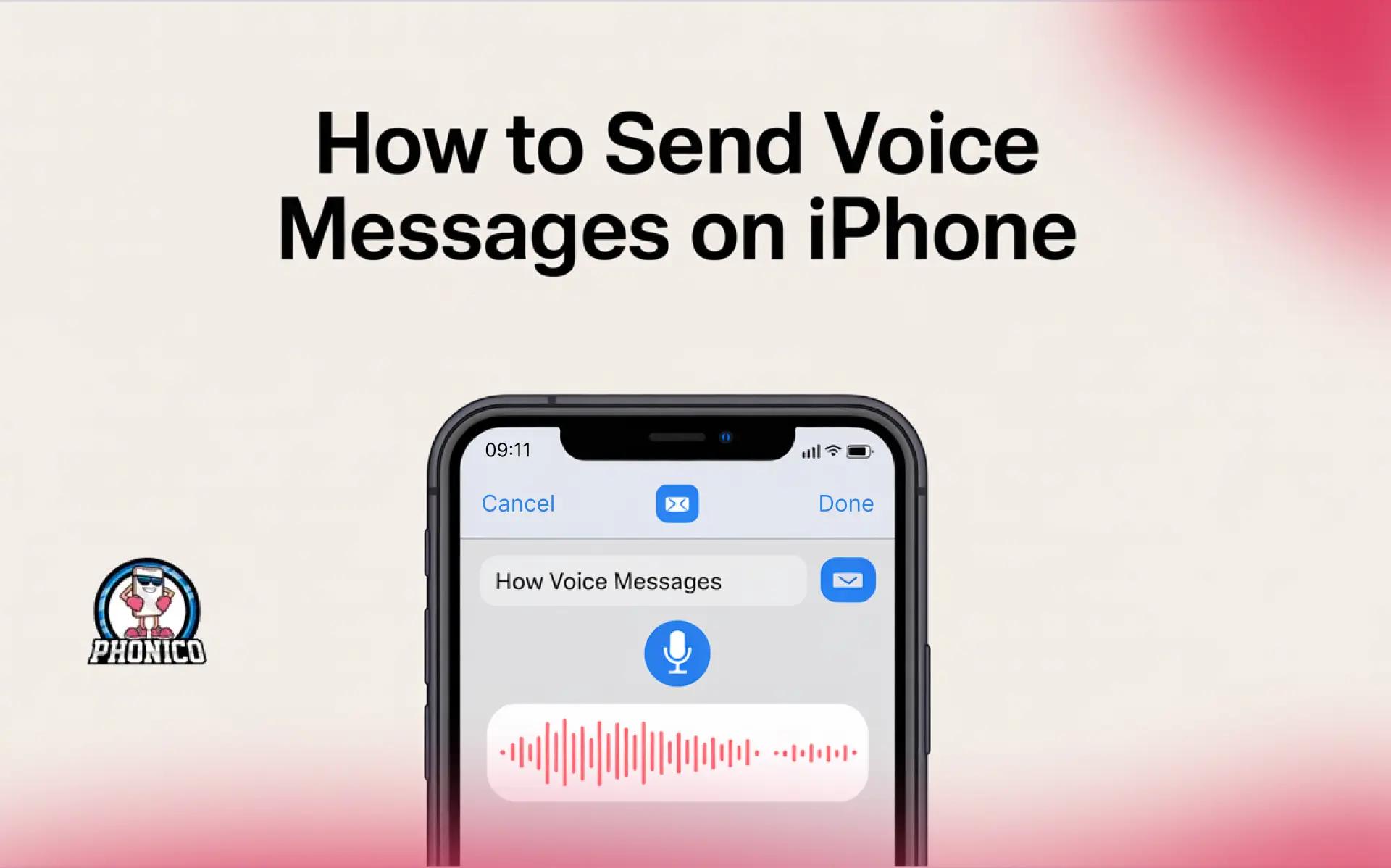
Open the Message app, create the conversation, and now click the + button and start recording audio. Once it's done, click the arrow to send the voice message on iPhone.
Voice messages are ideal for sharing things in a natural tone that messages can’t. You can share the urgent message while driving or multitasking. If you are facing trouble in finding the voice message icon in your updated iOS interface, you are at the right place to get assistance.
In this article, I will discuss the steps to send audio messages. Moreover, how to send audio to your Android user friend.
The Fastest Way to Send a Voice Message on iPhone
The following are the quick steps to send the voice messages.
- Open the Messages app.
- Click the + icon and move to Audio.
- Record your voice and click the Send button to share it.
In modern iOS versions, it is the most direct way to send audio messages. If you are updated to the latest iOS version, like iPhone 17, the microphone is now inside the + menu.
Send Voice Messages on iPhone Via the Message App
Message app is a simple tool to send messages on an iPhone. It works between the iPhones and appears in the audio bubble iMessage conversation.
In the latest iPhone models, like iOS 17, the audio message is inside the + menu, which generally confuses users that the audio option is missing.
Steps to create the voice message
- Open the Message app.
- Start the new conversation, or you can go with the existing one.
- Click the + button, click Audio, and it will start recording.
- Press the stop button when you are done.
To listen to what you have recorded, you can follow these steps.
- Click the Play button and listen to it.
- To record a bit more, again press the + button.
- To cancel it, press X.
Send the audio message
After following the given steps now its turn to send the message.
- With the message, you can see the arrow button, press it, and your recorded message will be delivered to the recipient.
- If you want to save the message, tap the keep button.
Why Audio Messages Disappear?
Sometimes users face the problem of messages disappearing. The following may be the reasons for it.
Default Expiry (2 Minutes After Sending/Listening)
Apple sets the audio message to expire after two minutes to save storage. Thats why generally users confuse that their voice message is deleted by themselves.
Disable Expiry to Keep Audio Messages Forever
You can go through the following settings to disable the expiry audio messages.
- Open the Settings app.
- Move to the Messages and Audio Messages.
- Now click to Expire and Never.
How to Listen to and Save Voice Messages on iPhone?
Here are the steps you can follow to listen to and save the voice message.
- Open the Message app.
- Open the conversation in which you have the voice message.
- Click the play button, slide your finger right and left on the sound wave to fast forward.
- You can speed up the message by holding down the play button.
- By clicking the Keep button, you can save the message.
Note: The following steps to send and receive the voice messages work from iPhone to iPhone.
Send a Voice Message Using the Voice Memos App
The Voice Memos app is perfect for high-quality recordings. It is the best means of audio communication with iPhone, Android and Windows users. The app offers editing, trimming and sharing the audio multiple times.
- Open the Voice Mamo app.
- Click Record to start the recording.
- Tap the Stop button when you are done.
- You can listen to the note before sending.
- Now tap the three dots next to recording, when it's prepared to send.
Do You Need the Internet to Send a Voice Message on Your iPhone?
Yes, the iPhone needs an internet connection to send voice messages. Audio messages in the Messages app are sent through iMessage. iMessages in iPhone are delivered to the recipient via stable WiFi or the cellular data connection.
SIMs don’t contribute to sending the voice message files. WiFi connection is generally not available at all times. Compared to a physical SIM, I recommend you to use an eSIM card to access a more effortless and stable connection.
An eSIM card is a built-in digital chip in compatible devices, which ensures your data safety and a smooth connection. You can remotely activate the eSIM on your iPhone and Android device.
Buying the best eSIM might be challenging for you. I recommend Phonico for travel to the USA for Nomads and frequent travellers. The carrier offers a variety of eSIM data plans with additional services of unlimited talk and text.
Conclusion
It's pretty simple to send a voice message on an iPhone via the Messages app or the Voice Memos app. You just need to press the + icon and Audio button to record and tap the arrow to send it.
In this article, I have dicussed the steps to send the message from an iPhone to Android via the Voice Memos app. Moreover, to deliver your message on an iPhone, an eSIM card is the ideal option to provide a seamless cellular data connection.
FAQs
Where is the microphone button for audio messages on iPhone?
You can check the microphone by tapping the + icon next to the text field. Here, you can select the Audio to record the voice message.
Why can't I send voice messages on my iPhone?
If the data connection is disable, or the iMessage is turned off, you can’t send the voice message on iPhone.
How do I send a voice message to an Android user?
You can send the voice message on Android via a Voice Memo file or use the VoIP apps like WhatsApp, Messenger, and Telegram.