
How to Send a Voice Message on Android Phones? A Phonico Guide!
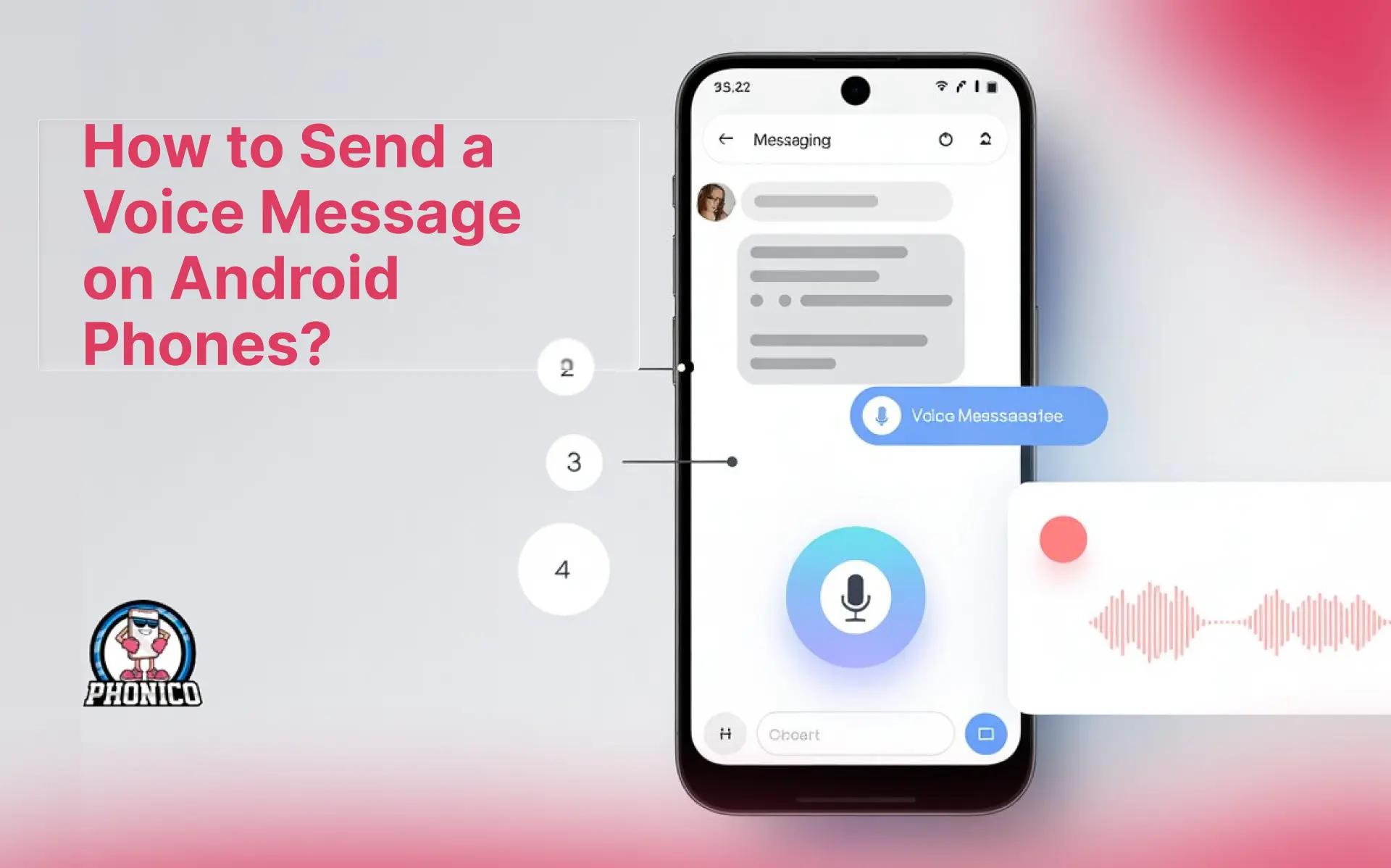
You can send a voice message on Android by opening your messaging app (Google Messages RCS, or Whatsapp). Open the app, select the person chat, press & hold the mic button, and record your message. That’s it! For the best experience, connect your device to wifi.
Voice messages are common nowadays for communication. Sometimes you are busy at work, driving, or have other errands. Instead of text messages, you go for voice messages for fast communication. The only important thing for this is the mic icon and your connection.
The guide will help you learn how to send a voice message on Android phones. What if they failed? Are there any fixes, and how do travellers with Phonico eSIM utilise this feature while travelling in the USA?
Step-by-Step: Send a Voice Message on Any Android Phone!
Voice messages work almost the same on every Android device. Most phones, especially ones using Google Messages, follow this exact flow:
- Open your messaging app.
- Select the chat or contact.
- Press and hold the microphone icon at the bottom.
- Speak while holding the button, then release to send.
- Swipe up if you need to lock the recording and continue hands-free.
- If you don’t like your audio, delete it before sending and record again.
Tip: If there’s no mic icon, the app may be stuck in basic SMS mode. Turn on RCS (Rich Communication Service) to enable voice messaging features.
Why Voice Messages Sometimes Don’t Send? What are the fixes?
Voice messages can fail to send. Now there is no complex reason behind it. Let me share why it happens and how to fix it fast:
RCS is turned off
Your phone switches to standard SMS mode, and SMS doesn’t handle audio well.
Fix: Open your messaging app settings and switch on RCS chat features.
The app has no microphone permission!
The phone blocks it from recording your voice. Means you will not see the mic icon.
Fix: Allow microphone access in your phone’s permissions settings.
Battery saver is limiting your apps!
When battery saver is toggle on, it can block voice messages from being sent.
Fix: Turn off battery saver while recording or sending a voice clip.
Weak network or roaming signal
Voice messages need stable data or Wi-Fi to upload. Sometimes SIM data fluctuates and fails the voice message. But that is not the case with phonico eSIM, fast internet, or secure wifi.
Fix: Move to a stronger signal or connect to Wi-Fi. Activate the Phonico eSIM 5G plan if you’re travelling.
Travel Tip: Audio fails more often when roaming. A stable data connection solves most problems instantly.
Sending Voice Messages Without Data Waste!
Since you are using eSIM data, and also want to save the data from being wasted. You need to follow these:
- Compress audio automatically (RCS does it)
- Avoid sending long messages over weak connections
- Use Wi-Fi when travelling to save data
- Shorter clips = faster delivery + clearer quality
Cross-App Alternatives (If Default App Fails)
What if your RCS is not functional or your Android device doesn't support it? You can still manage to send voice messages with alternative apps:
- Use apps like WhatsApp or Telegram when audio fails
- Some carriers block large audio text messages, so these apps solve this
RCS, Data, and Why Travelers Should Care
Voice messages depend on RCS. It works through mobile data, not regular SMS. When you travel, switching SIM cards or losing network can break RCS and stop audio from sending.
Therefore, eSIM with fewer issues is your best connectivity partner. You don’t swap anything, you don’t visit a store, and you skip waiting for activation.
With a quick scan, your data connection is active again, and you can record and send voice messages in seconds. It works seamlessly across most Android phone models when using an eSIM, making it a reliable choice for anyone on the move.
Troubleshooting Voice Messages not sending on Android
No need for a tech guy or an expert to look into this. If your voice messages are not sending, the fix is usually something small:
Mic icon missing?
Enable microphone permissions in your phone settings.
Audio not sending?
Turn on mobile data or Wi-Fi. RCS needs a live connection.
Message stuck while sending?
Switch off battery saver. It limits background uploads.
Poor audio quality?
Record shorter clips. Long messages compress more and lose clarity.
Why eSIM Makes Voice Messaging Easier When Traveling
Traveling with a physical SIM means swapping tiny cards, losing network time, and visiting stores to reconnect. An eSIM removes all of that.
You scan a QR code, activate it, and your phone stays online without interruption. This stable connection keeps your voice messages from failing mid-trip.
You can send audio messages anytime, use maps, translate text, and stay in touch with friends or work without worrying about signal breaks. When traveling in the USA, Phonico eSIM keeps messaging stable, which makes communication simple and stress-free.
FAQs
How do I send a voice message on Android?
To send a voice message on Android, open your messaging app (Google Messages, Samsung Messages, WhatsApp, etc.), open a chat, press & hold the microphone icon, record your audio, then release to send. If you don’t see the mic icon, your app may be in SMS mode. Enable RCS chat features.
Why is my voice messaging not working on Android?
Voice messages fail mostly due to:
- RCS disabled
- No microphone permission
- Weak data connection
- Battery saver is blocking background uploads
Fix it by turning on RCS, allowing mic access, disabling battery saver, and using a strong mobile data or Wi-Fi connection.
Where is the voice recorder or mic icon on my Android phone?
The mic icon appears at the bottom of your messaging app. If the mic button is missing on Android, it means:
- Microphone permission is blocked
- Your app is stuck in basic SMS mode
- Battery saver disabled the feature.
Enable RCS chat features and allow microphone permissions to bring it back.
How do I turn on voice messaging or RCS on Android?
- Open Google Messages
- Tap Profile icon ➝ Message settings ➝ RCS chats.
- Toggle Turn on RCS
- Restart the app
Once RCS is enabled, you will see the mic icon and can send voice messages through data instead of SMS.