
How to create a group text on iPhone?
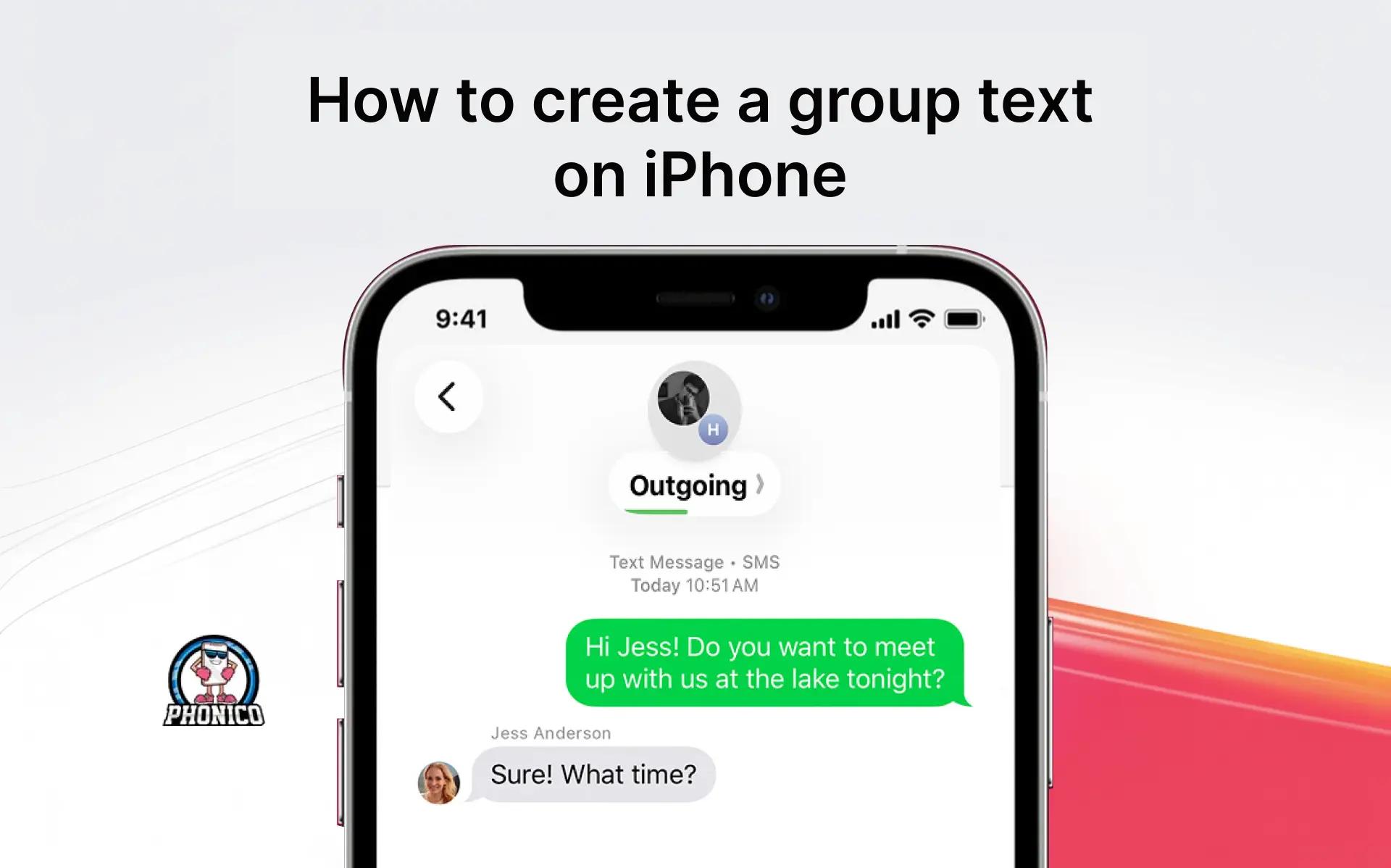
Open the messaging app, click compose, and add your friends' contacts. Write the text message and hit the send button. Now you have created a group text on your iPhone to chat with your friends.
In a group, you can stay in touch with all of your friends and discuss your bachelor's party arrival times, reservations, dress code, and food sensitivities. Groups are ideal for sharing photos and videos and managing teamwork.
In this article, I will explain the steps to create a group text. Moreover, how can you manage it and fix the common issues?
What Is the Group Text on iPhone?
You can have the group on your iPhone, either iMessage or a simple SMS group.
- iMessage group sent the message showing the blue bubble. It allows users to send media files and the option to remove people and leave the group. The text is sent via an internet connection.
- SMS group is a simple texting group that appears in a green bubble. It doesn’t have the advanced features like iMessage group.
How to Make a Group Text on iPhone?
It's pretty simple to create a group text on an iPhone. Here are the steps you can follow.
- Go to the Messages app on your iPhone.
- Click the Pen icon on the screen to make a new conversation.
- Add the contacts of the recipient, or you can select them from the contacts.
- Now type the text and click the arrow button, and it will be delivered to all your group recipients.
If any of your group friends don’t have iMessage, their messages will appear in green bubbles.
Note: iPhone has iMessage for individual and group texting. Users need cellular data or WiFi to send the text in iMessage. WiFi is perfect if you are in your home. However, if you are a frequent travelers or a nomad, try an eSIM card to access roaming free and stable data.
If you are planning a trip to the USA this year, use Phonico eSIM to stay connected. The provider offers a variety of eSIM data plans with additional unlimited talk and text services. The data plans are designed according to your needs. Visit the carrier site, buy your eSIM and enjoy connectivity throughout your travel.
How to Name Your Group Text?
You can set the group name according to the purpose you made the group for. For example, you can name the chat a bachelor's party. Here is how you can do it.
- Open the Group chat, click on the number or name at the top.
- Tap the Change Name and Photo and set the name.
How to Add People to a Group Text?
If you forget to add one of your close friends while creating the group chat, you have the option to add the new members. You can be a new person in the existing chat without any hindrance.
Here is how you can do it.
- Open the Group Chat.
- Click the group name in the corner.
- Now, click the field that shows the number of members in the group.
- Click the Add Contacts, and click on the plus icon to add the new contact.
How to Mention Someone Text Group?
In an iPhone group chat, you can mention your friends. It ensures that the specific person essentially sees it.
- Open the Group Chat and type your message in the text field.
- Also, type the person's name you want to mention, and the names will pop up.
- Click the specific name you want to mention and click the arrow to send a message.
How to Mute Group Text Notifications?
You can mute the group text notification to avoid the random notifications. It is ideal to avoid the random, irritating notifications. You can silence the chat temporarily following the given settings.
- Open the group for which you want to mute the notifications.
- Click the group name, and click the Hide Alert to enable it.
How to Remove Someone from the Group Chat?
Someone can remove the other person from the group. You can request the admin to remove you from the group or leave on your own.
- Open the Chat and click the group name at the top of the conversation.
- Click the grey arrow to show the complete list of contacts in chat.
- Swipe left to the person to remove.
- Select Remove and click Done to remove the person.
How to Leave a Group on iPhone?
If the group members have stopped interacting, you can leave the group. Here are the steps you can follow.
- Open the Group chat, click the Group name.
- Scroll down and tap the Leave This Conversation button.
Delete the Group Text on iPhone
You can completely delete the group from your iPhone.
- Open the Messaging app.
- Swipe left on the group chat and click Delete.
Conclusion
Creating the group text on iPhone is simple. Here is how you can do it. Open the Messages app, click the Compose button, add your people from contacts, and type a message to send. In the article, I have discussed each step in detail.
You can also get to know how to mention, remove, and add the person in your chat. Following the steps, you can manage and organise your group conversation.
FAQs
Can others see if I leave the group on iPhone?
Yes, when you leave the group, everyone can see the message stating you left the group.
Why can't I group text anymore?
You can’t send the group text if the admin imposes the restriction on the number of recipients in a group text.
Can I create a group text on Android?
Yes, like the iPhone, you can create a group text on the Android. Open the messaging apps, add the new contacts and start the new conversation.