
How to connect your phone to your TV?
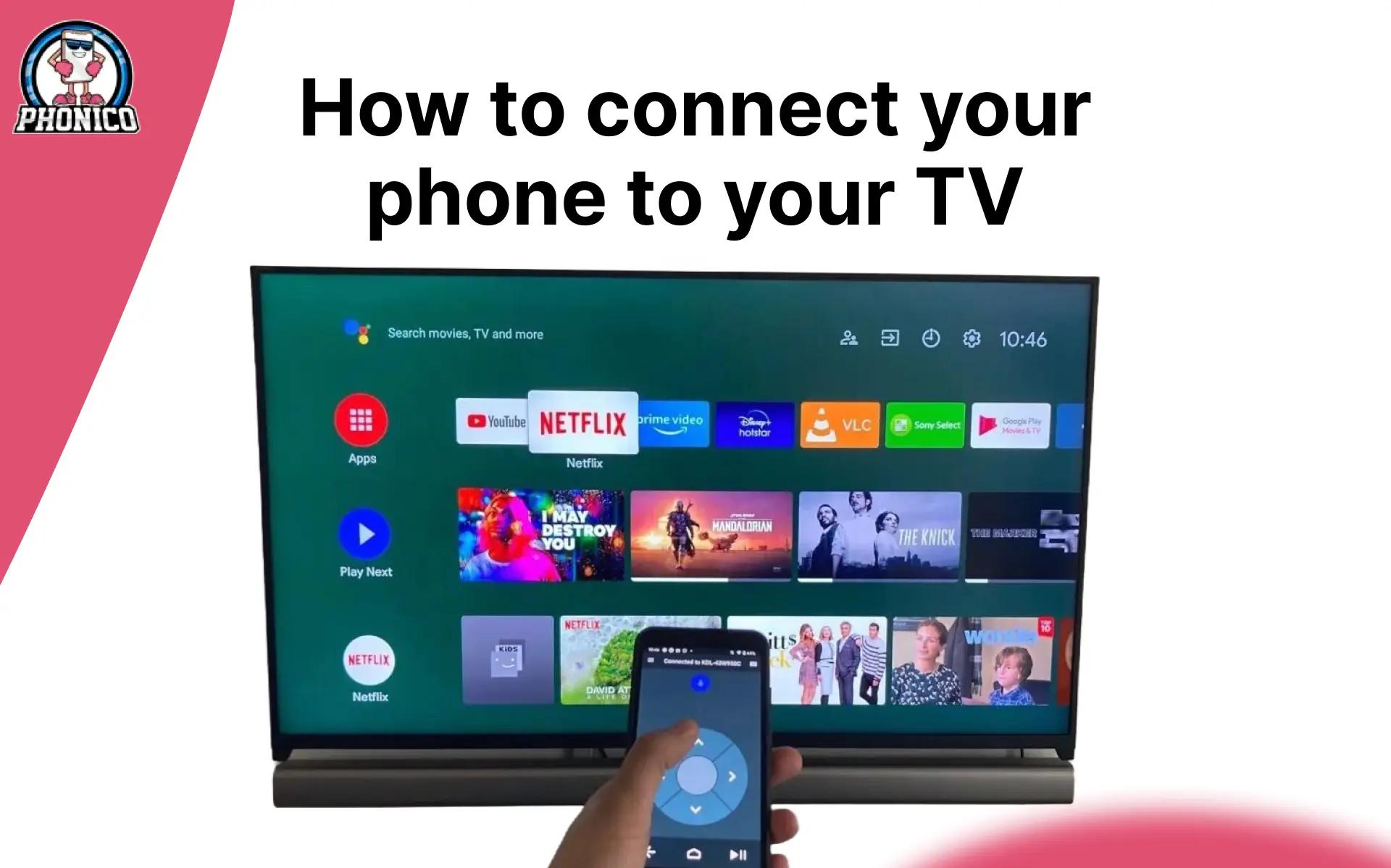
You can connect your phone to the TV wirelessly or via cable. The faster way is screen mirroring or casting to see what Candy Crush looks like on a 55” 4K. A few years ago, it seemed impossible, but now you can switch the last night’s shaky concert footage on your TV screen.
Connecting your phone to your TV is perfect for watching TV shows, movies, and photos to improve your entertainment experience. In this article, I will go through the methods ideal for connecting a phone to your TV.
Preparation to Connect Your Phone with TV
To connect your mobile phone to the TV, consider the following things.
- Ensure that your mobile phone and the TV are connected to the same WiFi.
- Make sure that your TV supports casting or mirroring.
Note: You can connect your phone to WiFi or use an eSIM card cellular data plan to access a stable connection. If you are a traveller and staying in a hotel, you should have the eSIM data plan. Phonico is the ideal SIM to stay connected in the USA, offering unlimited talk and text services.
Casting vs Mirroring: Key Difference
You have likely heard these terms. These are essential to understand to connect your phone to the TV.
- Casting refers to when you broadcast online content streaming through apps like Netflix & YouTube to your TV. You can continue the other activities like checking your text messages, scrolling Facebook, and doing other things on your phone.
- Mirroring replicates whatever is happening on your phone screen to your TV. While mirroring, if you leave a video to check the message, it will appear on your TV. It's ideal to enable the Do Not Disturb mode while mirroring.
Now, let's move towards the steps to connect your phone to your TV.
Connect Your Phone to Your TV
If your TV supports the AppleTV app and AirPlay, it allows you to cast or mirror your phone. Here are the steps you can follow. Here are the steps you can follow.
Cast an iPhone to a TV
- Open the app you want to stream.
- Find the AirPlay icon, and tap it.
- Now select the TV from the menu to connect.
Mirror an iPhone to a TV
- Open the iPhone Control Centre.
- Click the AirPlay icon and move to the Screen Mirroring menu.
- Now select your TV to connect.
Connect an Android Phone to Your TV
The Android phones that have built-in Chromecast are compatible with the smart TVs or those connected to the Chromecast. Samsung Android phones are especially easy to connect to Samsung TVs.
Cast an Android phone to a TV
- Open your streaming app.
- Look for the Cast icon and tap it.
- Now select the TV from the menu.
Cast a Samsung Android phone to a TV
- Go to the smartThing app and tap the Plus icon.
- Select the Add Device and add your TV under Samsung Device.
- Find and select the TV in the Devices menu.
- Click the three dots and select the Mirror Screen.
Screen mirroring to a TV with an Android phone
- Go to the Google Home app.
- Click the TV to connect and select Cast My Screen.
Conclusion
Connecting your phone to the TV is simple. You have to make sure that the TV and phone are both connected to the same WiFi. But you can enjoy streaming if your TV supports AirPlay.
If it does, you can connect your TV to your phone via casting or mirroring. In the article, I have discussed the steps in detail to avoid any errors during connection.
FAQs
Why is my TV not detecting my phone?
To connect your phone with the TV, ensure that screen sharing is enabled in both devices. Moreover, connect the TV and phone to the same network.
Can I watch TV shows from my phone on a big screen TV?
Yes, you can watch the TV shows from your phone on the TV screen by mirroring or casting.
Why is there no sound when I mirror my phone to the TV?
It generally happens when the TV audio output is set incorrectly. You can change the TV’s audio source or unmute your mobile phone.