
How to check data usage on iPhone?
Does your data run out before the month ends? It happens when you don’t monitor your data usage. Checking data usage on iPhone and Android is essential to avoid unexpected charges. Multiple social media and streaming apps use the data in the background, even if you are not aware of it. Checking the usage on your iPhone can help you manage your data plan effectively.
In this article, I will go through the details about how you can check the data usage on an iPhone. There are a few steps you can take to avoid the extra charges.
Why is it essential to monitor the data usage?
Knowing about the application that uses most of your data connection helps to manage the consumption. Video streaming, emails, navigational apps, and data backup require a cellular data connection to operate smoothly. For example, high-definition video streaming consumes gigabytes of data.
How to check data usage on iPhone?
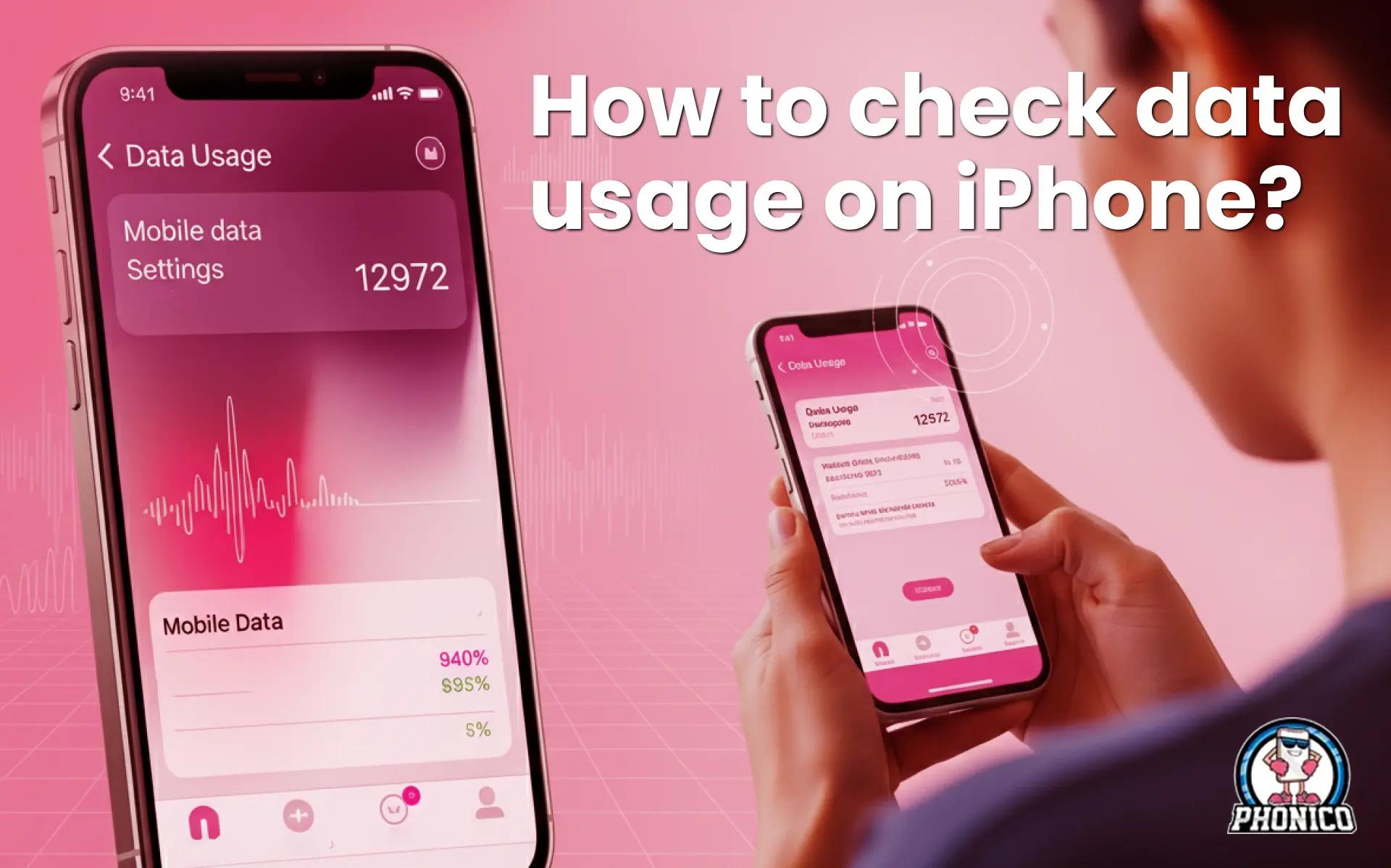
You can check the data usage from iPhone Settings.
- Open the Settings app on your iPhone.
- Look for the Cellular and Mobile Data option.
- Scroll to the list of data using apps to check the data used by each app.
- You can also monitor the total data usage.
If the data usage is higher than you expected, you can further confirm how much a single app uses the data.
How to check your data usage by app?
You can also check data consumption and confirm which app is more data-hungry.
- Open Settings on your iPhone.
- Tap into the Cellular and Mobile data.
- Scroll to check the list of apps that use the most data.
- Turn Cellular Data on or off for your selected app.
Keep the data usage on for messaging, maps, and email, but disable it for the app stores, downloads, and video streaming until you are on WiFi.
How to check eSIM data usage?
Like a physical SIM, eSIM card data is also used by the apps in the background. Traveling with the standard or limited plan can lead to early data running out. If you are traveling with a USA eSIM for long term trips, you should buy a plan with an extra amount of data to avoid the connectivity hassle. To monitor your eSIM data usage with a dual SIM device, you can follow the given steps.
- Open the Settings of your device.
- Move to the Cellular section and select the line to check the data usage.
- Click each line to check the data consumption.
You can use the same procedure to check the data consumption of the SIM card.
How to limit your data usage on an iPhone?
You are not a heavy data user, but your data runs out before the expected time. It generally happens when you don't monitor how much data the apps in the background are using. The following are some steps that will help limit your data consumption.
Limit the Background Data Consumption
Video streaming and other apps use the data in the background to update and sync the information even if you don’t use them. Some of these apps use a good amount of data without our permission. But you can limit this cellular data usage from the iPhone settings.
- Open the Settings app on the iPhone.
- Scroll to the General section.
- Look for the App Background refresh and toggle to turn it off.
This procedure will limit the apps from consuming your data in the background.
Set the WiFi to Download the Device Updates
Set your device to update the apps when connecting to the WiFi. Stop the automatic updates from the cellular data connection. You can go through the following settings.
- Open your device Settings.
- Click on the App Store.
- Turn off the App download.
Adjust the Quality
To minimize the data consumption, adjust the video and image quality from your device settings. Low-quality video takes a minimum amount of data to share with the other device.
Turn on Low Data Mode
Turn on the Low data mode to adjust your data consumption. You can enable the low data mode from your device settings.
- Open the Settings app on your device.
- Scroll to the Cellular section, then Cellular data.
- Toggle to turn on the Low data mode.
Conclusion
Running out of data before the end of the month is quite frustrating, especially during international travel. It happens when the background apps use the data, and you don’t know how much data the apps you are using are using. Checking the data usage can help you reduce data consumption. You can confirm it from the iPhone settings or through the apps. In the article, I have discussed the steps to limit data consumption. Go through the methods to reduce your data use.
FAQs
How do I see my data usage?
From Android devices, you can check it from your device settings. Open the Settings app > Network & internet > Internet. Here you will find the total data usage.
How do I check my data usage for a period on my iPhone?
You can check it from your device Settings. Open Settings > Cellular or Mobile Data > Cellular Data or Mobile Data. In this section, you can see the amount of data you used.