How to Share Wi-Fi Password on iPhone?
How to Share Wi-Fi Password on iPhone? Open Settings on iPhone > Network >Share WiFi Password > tap Share to transfer the code and connect other iPhones.
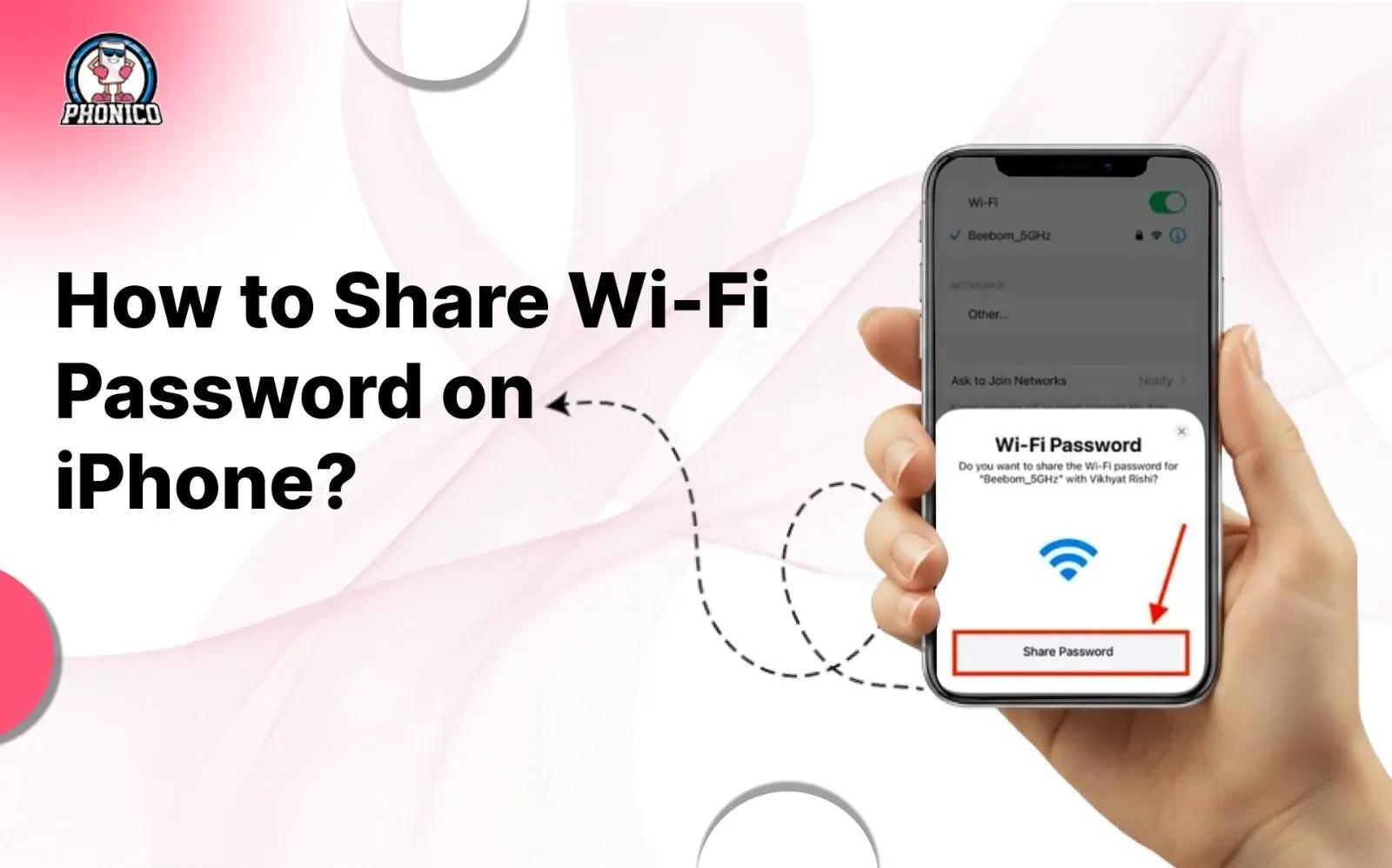
You can share the WiFi password manually, via QR code scan, or through quick sharing. Open Settings on iPhone > Network >Share WiFi Password > tap Share. The code will be transferred to another iPhone.
When guests visit our houses, we offer luxury dining. But one thing that we miss is sharing our WiFi password. It seems frustrating to share a long string of numbers and symbols. There should be simple methods to share the WiFi password on an iPhone.
In the article, I will discuss the methods you can use to share your WiFi with another iPhone without any security risk. Moreover, I will cover the troubleshooting if password sharing fails.
Quick Setup Checklist Before Sharing Your Wi-Fi
Before sharing the password, it's essential to go through the following checklist.
- Updated iOS: Make sure that both devices have the updated iOS version. Like your iPhone requires iOS 11, your iPad also needs iOS 11.
- Enable WiFi Network and Bluetooth: To share the password, ensure the device is connected to WiFi and Bluetooth is enabled on both phones.
- Disable Hotspot: Turn off the personal hotspot because it might interrupt the sharing.
- Saved Apple ID: Before sharing, ensure that both users have saved each other's Apple ID.
- Keep Devices Close: Keep both devices unlocked and close to each other for easy password sharing.
How to Share the WiFi Password on iPhone?
You can share your iPhone's WiFi password in a few steps. Here are the steps that can help you transfer your iPhone code to another. Ensure to consider the checklist before sharing.
Share the password from settings
- Open your iPhone's settings, click on the network you want to select.
- A window will appear with Share WiFi Password, tap the Share button.
- Now the code is transferred, and the other device will connect automatically.
Note: The similar methods are used to share a WiFi code from an iPhone to an iPad and a MacBook.
Share password via QR code
Another hassle-free way to share the WiFi password with Apple devices is to generate the QR code. You can use the authentic online QR code generators. With the code scan, the other iPhone users will get the option to confirm.
Once the user confirms and clicks the join button, the device gets connected.
Manual sharing
You can locate the password to share it manually with your friends and family.
- Open the Settings and scroll to WiFi.
- Click the Blue “i” button in front of connected networks.
- Click on Password, verify your identity, and the password will appear on the screen.
WiFi Sharing Not Working? Troubleshooting Tips
WiFi password sharing is consistently failing. The following are the steps you can go through to fix it.
- Ensure to enable Bluetooth on both devices with mobile data.
- Both iPhones should have the latest software.
- Restarting works to troubleshoot minor issues. Power off the source device and restart it.
- There might be an issue with the network connection. A slow network may fail to share code. Ensure that to connect your devices to a stable network.
Safety Tips When Sharing Wi-Fi Password
Your data security comes first; thus, consider the given tips to ensure the secure code transfer.
- Ensure to share the code with your reputable companions.
- Disable the automatic sharing to avoid unauthorized access.
- It's ideal practice to change the password from time to time.
- Set up the guest network to keep your data save.