
Are are dealing with early data running out? Most of us face this situation day to day in our lives. High data usage leads to extra bills. Monitoring the data can help you to limit the extra consumption.
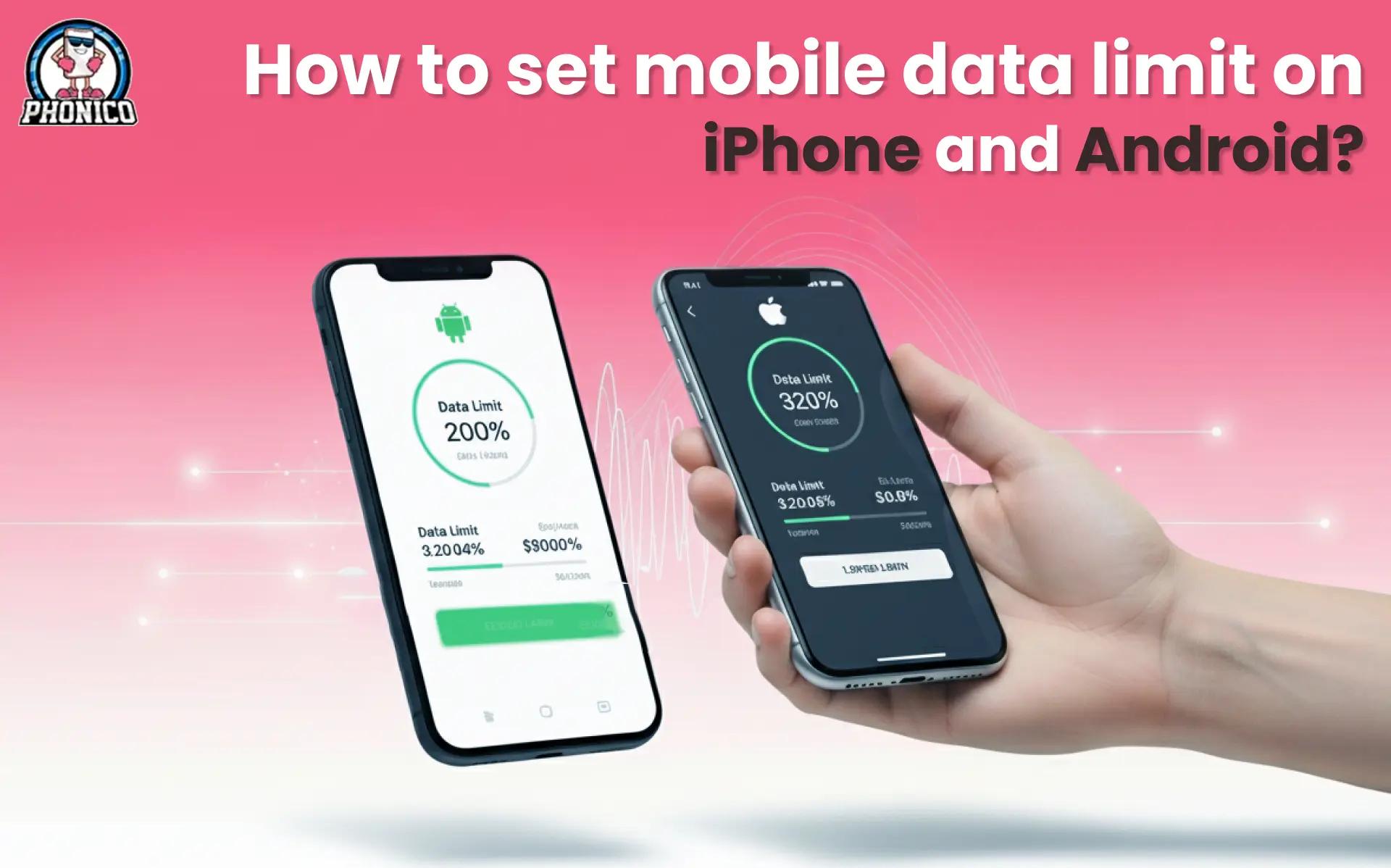
Moreover, you can also set the data limit on your Android and iPhone to avoid excessive use. Setting the data limit means your device will know how much and when to use the internet.
In this article, I will go through the steps to set the data limit on your devices. Moreover, the tips you can follow to avoid the extra bill shocks.
How to set data limit on iPhone?
In iOS devices, you can limit the data usage, following the given steps.
- Go to the Settings app on your iPhone.
- Scroll to the Cellular and tap the Cellular Data option.
- Toggle to turn on the Low Data Mode to reduce data consumption.
Note: It is important to note that not all iOS devices allow the direct data limit option. You can’t directly restrict the data consumption. However, by monitoring the data consumption of multiple apps, you can limit the cellular data use in your iPhone.
How to prevent apps from using excessive data?
To restrict the app's high data usage, follow the given steps.
- Open the Settings app on your iPhone.
- Move to the Cellular and look for View Data Usage.
- To avoid excessive data use, restrict the App data Usage.
If you a using the eSIM card in your iPhone, you can monitor cellular data usage as well. Carriers like Phonico eSIM offer a stable and seamless connectivity solution that prioritizes users' ease.
How to set mobile data limit on Android devices?
Setting the mobile data usage limit on Android devices is a smart move to avoid high data bill shocks. You can go through the following steps to restrict the data usage on different Android devices.
For Samsung Galaxy
Make sure to turn on mobile data mode.
- Open Settings app in your Samsung Galaxy device.
- Scroll to Connections and Data Usage.
- Go to Billing cycle and data warning and set it to start and align with your data plan.
- Set data warning and enter total data limit.
- Enable the Data Warning Limit; it will stop your device from using the extra internet connection.
For Google Pixel
- Go to the Settings app of Google Pixel.
- Click to Network & Internet connection.
- Set the data warning limit to stop data usage.
What are the strategies to manage data effectively?
In spite of setting the data limit, you can use some other strategies to manage your data.
Enable the Data Saver Mode
Generally, the devices have a built-in feature of Data Saver Mode. Enable the data saver mode in your device to reduce data consumption.
Monitor your Data Consumption
Monitoring the regular data usage will help you minimize excessive data. You can check the data usage for each app. Which one is using more data?
Control App Data Usage
Check which app on your device is using more data. Some apps in the background use most of the data even without your permission. To minimize the data consumption, you can set the data limit on an iPhone or Android device.
Share the Low Quality Files
Sharing the low-quality videos, audios, photos, and files is another option to limit the excessive data usage.
Updates your Device on WiFi Connection
Set your mobile apps to update when connected to WiFi. It will help the excessive data use and high data charges.
Conclusion
Most of the travellers and general data users deal with excessive data allowance. The most frequent asked question is how to set the data limit on iPhone and Android devices. How can you set the limit from your device settings app?
In the article, I have discussed the detailed steps to set the data limit. Moreover, there are some other data saver strategies you can follow. Following the data saving tips and tricks, you will be able to get rid of the extra bill shocks.
FAQs
How can I track my app data usage?
You can track it from your device Settings. Go to Settings app > scroll to Network & Internet and Internet. Now move to App Data Usage and confirm your cellular data consumption.
Can I manage eSIM data consumption in the device?
Yes. You can monitor, manage, and limit the excessive eSIM data usage in your device. However, if you are relying on an eSIM unlimited data plan, there is no limit on data usage.