How to deactivate iMessage on iPhone?
How to deactivate iMessage on iPhone? Open Settings > Messages > iMessage, toggle to turn it off.
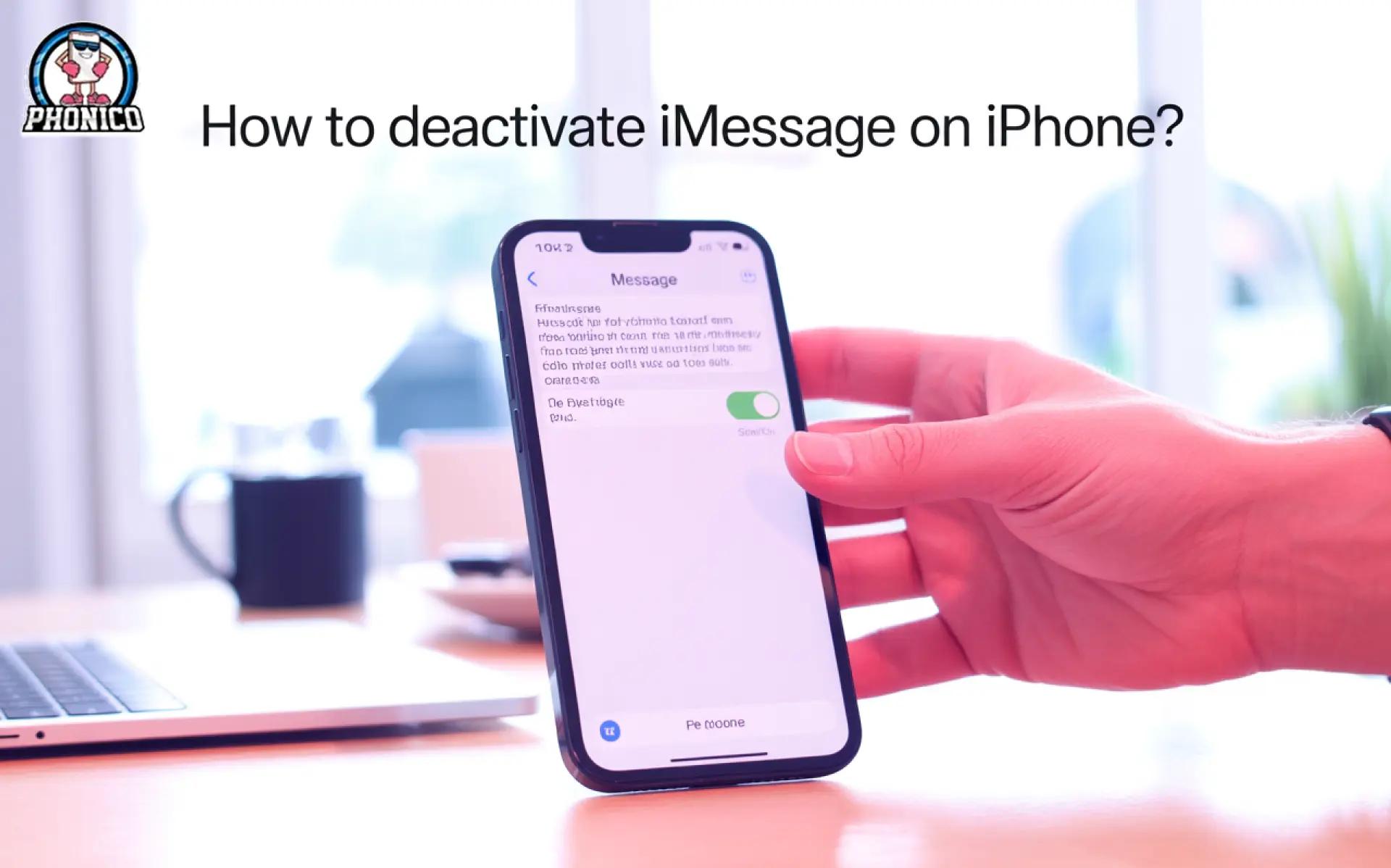
Open the Settings, move to the Messages, and click on it. Tap to iMessage and turn it off. Following these steps will deactivate iMessage on your iPhone.
Most of the users who switch from Apple to Android report the missing text issue. It happens with active iMessage, and when the text is routed to the Apple server. The common solution is to deactivate the iMessage on an iPhone, but how?
This article is a guide to deactivating iMessage. I will discuss what happens when you disintegrate the iMessage.
Why Deactivate iMessage?
Here are some common reasons to disable iMessage.
- Switch from Apple to a non-Apple device: If you recently switched to an Android phone, it will ensure you get the SMS messages.
- Missing texts: Disabling iMessage will troubleshoot the missing texts issue.
- Security concerns: Disable iMessage will ensure that it avoids reliance on Apple servers.
How to Deactivate iMessage on iPhone?
Here are the steps to deactivate iMessage on an Apple device.
- Go to the Settings menu on your device.
- Move to the Messages and click on it
- Look for iMessage, tap it to turn off.
Now you can no longer send or receive iMessages.
Ensure to turn off FaceTime to prevent Apple services from using your number. Follow the given steps.
- Open the Settings app.
- Move to FaceTime.
- Toggle to turn it off.
It prevents FaceTime calls and messages associated with your Apple ID.
Deactivate iMessage Without the iPhone (Deregister Method)
If you lost your phone, you can deregister the iMessage online.
- Visit the Apple Deregister iMessage browser.
- Enter your phone number, including the country code.
- Apple will send you the SMS with the configuration code.
- Now enter the code and click to confirm.
- The number will be removed from iMessage.
Best Practices: Ensure Deactivation Works Properly
To avoid any issues, ensure to stick to the following steps.
- Make sure to turn off iMessage and FaceTime before switching to the new device.
- Ensure to log out of your Apple ID.
- Be aware that the Apple services may take 24 hours to update the deactivation.
- After deactivation, send the text from different iPhones and non-Apple devices to confirm iMessage.
Troubleshooting & Common Issues
After deregistering the number, some users still report the active iMessage. You can go through the following fixes.
- Still receiving iMessages: After deactivation, if you are still receiving iMessages, ask your contacts to start the new message thread. Clear the Send as SMS and wait for a few hours to propagate changes.
- Not receiving SMS: Recheck the deregistration steps. You can restart the device to troubleshoot the issue.
- Confirmation code is not received: Confirm the number you entered is correct. If the issue is still there, contact the Apple support team.