
8 Effective Ways to Save Data on Android
Data saving makes sense if you are dealing with an unexpected data runout. Android users have multiple options to save data, like data saver mode, standard video quality, and setting a data limit and a warning.
It helps to manage the data if you have a limited plan. In this article, I will discuss the effective tips to limit the consumption on your Android device.
Why Android Uses So Much Mobile Data?
Apps like Instagram and Google Photos use data to update even when you are not active on your phone. The background sync, notifications, and cloud backup all use your data plan.
You can monitor how much data the apps on your device use. It helps you to take action to minimize this consumption.
Here are the steps to check app data usage.
- Open Settings on your Android.
- Click Network & Internet and scroll to Data usage.
- In this section, you can check the App data usage.
Quick Tips To Save Data on an Android Device
The following are several essential steps you can follow to minimize data usage in your device.
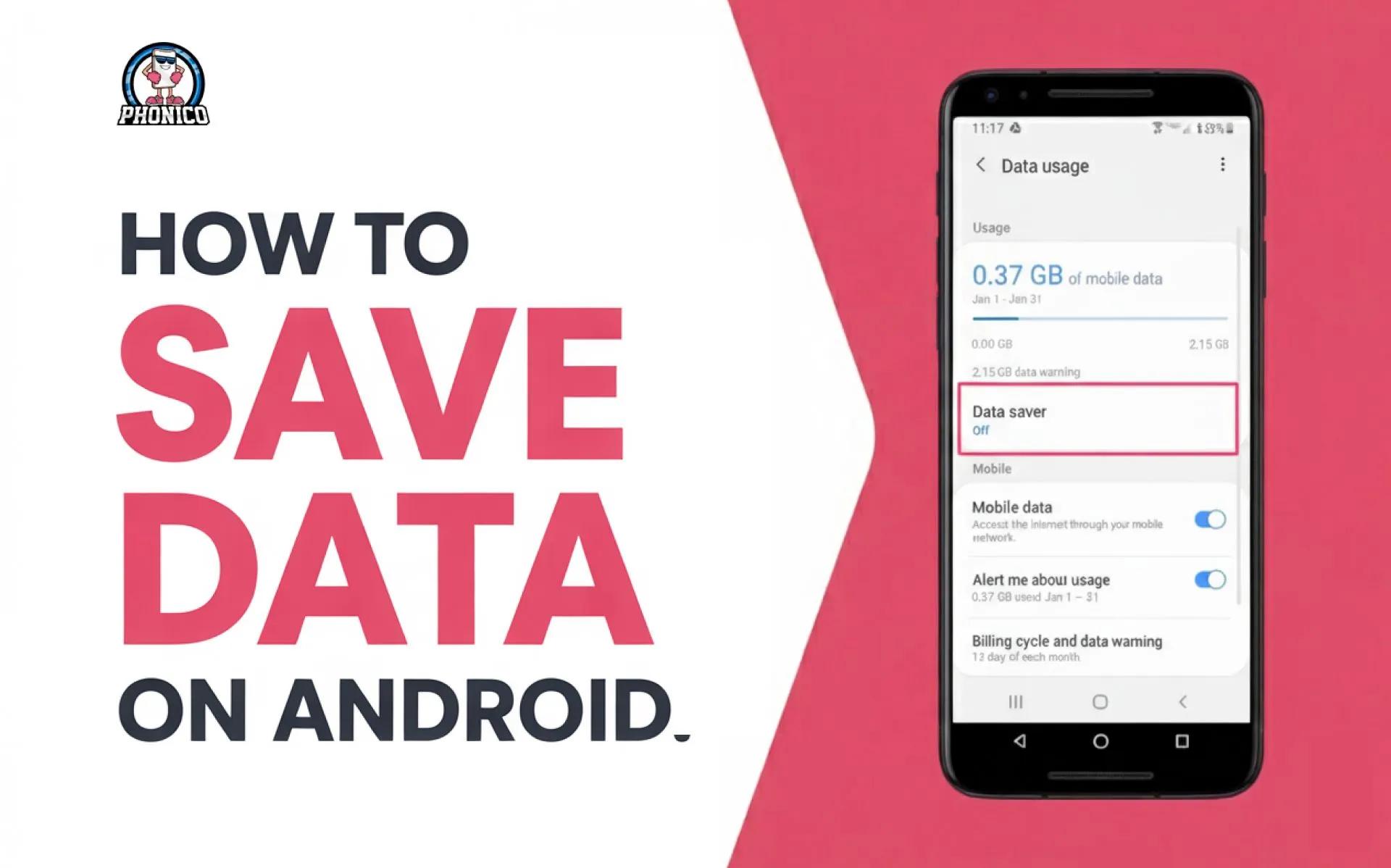
1. Enable Data Saver Mode
Activate the data saver mode on the phone to restrict the app data usage. Background app use a lot of data even without your consent.
- Open the Settings app on your Android.
- Click the Network & Internet or Connections according to your device model.
- Look for Data Saver.
- Toggle to activate the data saver.
2. Set Data Limitations
Set the data limit on your Android. It will ensure to limit and keep the data usage in check. Here is how you can do it.
- Data Limit: Set a data limit; once the data usage reaches to limit, the mobile data will automatically turn off.
- Data Warning: You can set the data warning to give an alert of excessive data usage.
- Data Saver: It will limit the data consumption for the background apps.
3. Optimize Google Photos and Cloud Backups
Google Photos uses the data to back up your pictures and videos. Cloud takes a backup of the recent data. You can use these to update only when your phone is connected to WiFi. You can follow the given steps.
- Open Google Photos and click Settings.
- Tap Backup and Mobile Data Usage.
- Here, you can set it to WiFi-Only.
4. Avoid Tethering and Hotspot
Data tethering and hotspot consume your data faster. If the other users download updates, stream video, or perform other data-heavy tasks, it will lead to early data runout with a limited plan. So, you should avoid tethering or limit the data consumption of the connected device.
5. Manage Streaming and Social Media Settings
Social media and streaming apps consume data in gigabytes in an hour. To save such data usage on your Android phone, you can follow the given settings.
- Lower the Video Quality: Go to the Settings section of your streaming app, like YouTube, Netflix, or Prime Video. You will find the video quality section here. Adjust the quality to Standard Definition (SD).
- Disable the Autoplay: Auto-play consumes your data plan. You can disable the autoplay of YouTube and other apps to save cellular data.
- Download the Content: The ideal option is to download your favorite content when connected to WiFi. You can watch it in offline mode without using data.
- Use Lite Apps: The lite version of Facebook and other apps is best for consuming less data.
6. Use Maps in Offline Mode
Google Maps uses mobile data for navigation and route updates. You can download the map for the area you are visiting. Ensure to download it when connected to WiFi. Once it is downloaded, you can select the offline Maps from the app to use them.
7. Use the Data Compression Tools
Data compressions are built into browsers that compress the data used to load the page, image, or video. Using these tools is an effective approach to save data in Android phones. If these are available in your browser, you can access them from the settings.
You can also download a third-party compression app like Opera Max to minimize data consumption.
8. Use eSIM Data Plans
Compared to SIM cards, data roaming, and pocket WiFi, eSIM technology is an effective option to enjoy a flexible connection. The data plans of eSIM are affordable, offer fast network coverage. You can set up eSIM in Android via QR code scan.
eSIM providers offer limited and unlimited data plans for travelers. Phonico is also one of the top carriers offering eSIM data plans for USA travelers. Carrier offers multiple data plans with excellent unlimited talk and text services.
Conclsuion
If you are irritated by early data runout during travel, you are at the right place to get effective solutions. In the article, I have discussed why your Android uses too much data and how you can monitor it.
To reduce the unexpected data consumption, you can disable the background app data usage, turn on the data saver, or use the eSIM card. Read and follow the other steps mentioned in the article to avoid excessive data usage.
FAQs
Does Data Saver affect app performance?
Yes, turning on the data saver mode affects the app's performance. It might delay the notifications, refresh and updates, and the real-time syncing.
What is the best app to save data on Android?
Some Androids have the data saver mode. But you can use third-party compression apps, like Opera Browser or Datally, to save data in Android.
How can I stop Android system updates from using my data?
In Android, turn off the download updates from settings. Now, enable the auto-download over Wi-Fi only from the software update settings.