
How to organise apps on Android phones?
It's pretty simple to organise the phone apps. Clean your home screen, create new folders, and sort the things in the app drawer to find apps quickly. You need to make some settings, which contribute to improving your Android performance.
It is ideal for official workers who download more apps. It is helpful to avoid the clutter, which slows navigation. In this article, I will cover the actual steps you can follow to organise apps on your Android phone. Moreover, some advanced tips to avoid the mess on your phone.
Understand How Android Organises Your Apps?
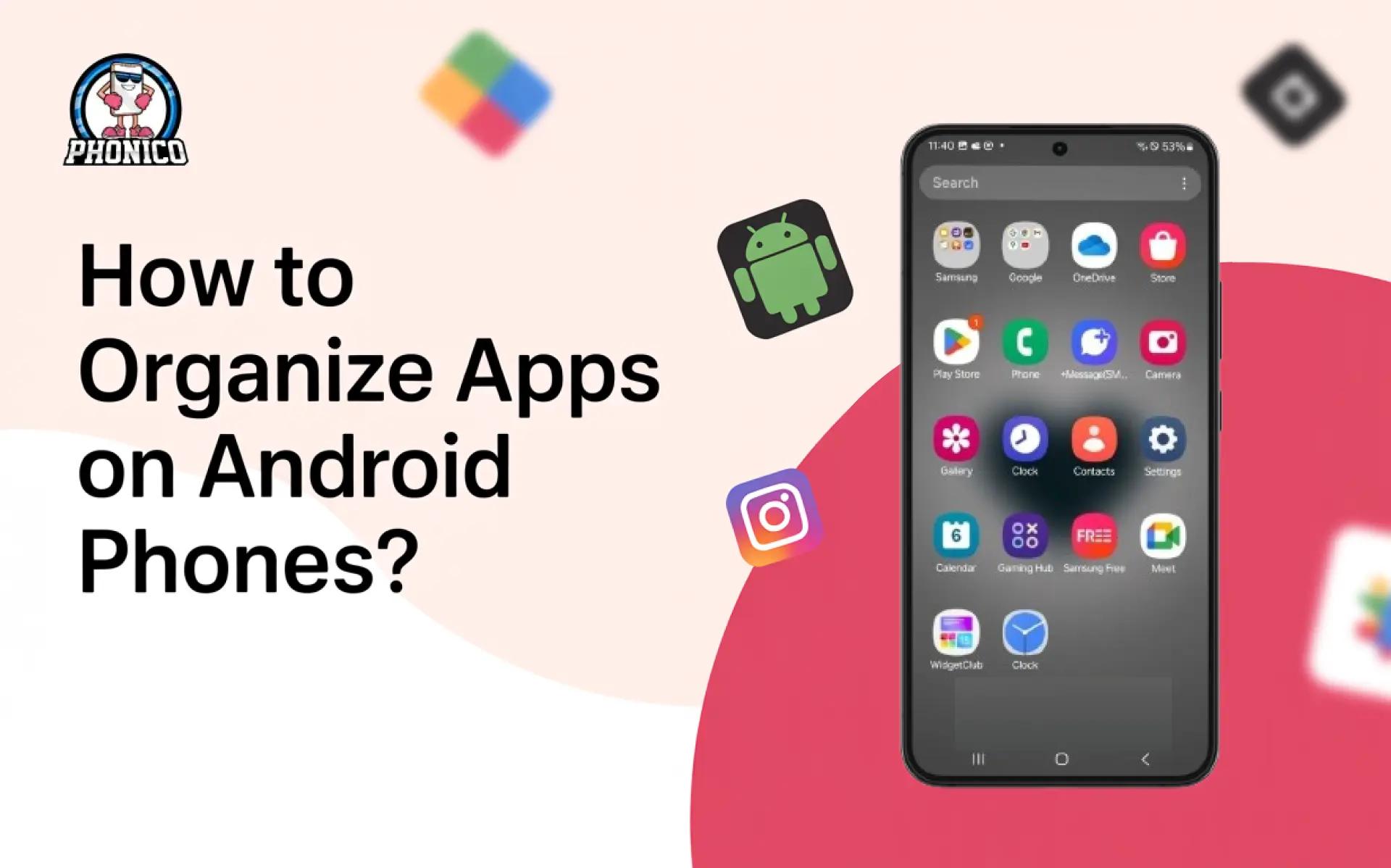
The apps on your phone live on the home screen and the app drawer. In the app drawer, you can see the list of installed apps, and on the home screen, you can swipe through them.
If your app is not shown on the home screen, it might be hidden in the drawer. This understanding lets you organise the app without duplicating the icons.
Steps to Organise Apps on Android Phones
Here are several steps you can follow to organise apps on your mobile phone.
Move Android apps
You may have noticed that the long press on the app on the home screen undocks the app from its default location. To move the app, follow the given steps.
- Long-press the app you want to move.
- Drag it using your thumb or finger to a different place.
- You can shift the app to another home screen.
Remove unwanted Android apps
There will definitely be an app on your device's home screen that you have not used for 8 months. Don’t you think it's ideal to declutter the app? Here is how you can do this.
- Look for the app you want to declutter.
- Tap and hold it, and uninstall the app as an unnecessary thing on your phone.
Note: You can hide it on the other home screen page to reduce the distraction and keep your layout tidy.
Add home screen panels
If you are managing multiple apps on a single home page, you are definitely smart. But those who can’t are allowed to add more panels to organise the essential apps.
- Hold down the space on your home screen for a few seconds.
- Swipe right on the screen until you see the + icon.
- Click the + button to add the panel.
Create folders on your Android home screen
Creating folders is the perfect organisation tool you can use to arrange your apps. Here are the steps you can follow to do so.
- Tap and hold the app you want to shift to the folder.
- Drag the app on top of another to move both to the same folder.
- Drop the app in the folder frame.
- Select the folder name like work, social, or payment.
Note: If you are on a trip and have an eSIM card app in your phone, you can make a new connectivity folder for the app. If eSIM is new to you, let me explain a bit. eSIM is a digital SIM that offers a fast network connection.
Customise the layout for a minimalist look
Adjust the grid to a smaller size to make your layout clear. Set the minimal backgrounds for the clear visibility of the app icons. Moreover, ensure to enable Lock Home Screen Layout to prevent accidental app movement.
Use Android shortcuts and widgets
Here are the steps you can follow to make how widget like a pro.
- Hold the space for a few minutes, where the widget will be.
- Click on the Widget when the menu pops up on the screen.
- Now, choose the app whose widget you’d like to add.
- Adjust the widget size and click on to Add button.
Prevent Android from adding apps to your home screen automatically
The following steps I dicussed will be enough for you to arrange your apps in Android. Your home screen is cleaned up. However, here are the steps you can follow to avoid adding apps to your screen automatically.
- Click and hold the blank area on your screen.
- Tap the More button or the home Settings to turn off the feature.
Advanced Tips for a Smarter App Setup
The following are some steps you can follow for the smart app setup.
- You can use the third-party launchers for the control.
- Use the automation effects to avoid distracting apps during work.
- Similarly, you can split the large categories into small folders.
Conclusion
Organising the apps on Android phones is easy. It is ideal to navigate faster, reduce clutter, and find the apps you need. You can clean your home screens, create folders, adjust your app drawer, and maintain a simple layout to arrange your apps in Android.
In the article, I have discussed each step in detail to help you clean up the app mess in your phone. It takes only a few minutes to reorganise your phone and enjoy a cleaner and more productive Android experience.
FAQs
How do I clean up my home screen without deleting apps?
You can remove the app's icon without deleting it. Long-press the app, select the Remove button, and the app will move to the app drawer.
How do I stop new apps from appearing on my home screen?
Go to your Play Store Settings and disable the Add App to Home Screen button. It will prevent the new installed apps from showing on your home screen.
Why do my apps keep moving around on their own?
It happens when the home screen layout is unlocked. Enable Lock home screen layout in launcher settings to prevent the icons from automatic movement.