
How to free up space on an Android phone?
Delete the unnecessary files, remove the duplicate photos, clear the cache, or use the built-in tools to free up space on an Android phone.
When the device storage is full, it disturbs your phone's performance. It generally begins to lag, fails to update, and basic tasks become frustrating. You should regularly manage your phone storage to avoid issues.
In this article, I will discuss the reason why your device keeps running out of space. Moreover, the advanced storage cleaning methods to avoid deleting apps.
Understanding Android Phone Storage
Before getting into the details, it's ideal to understand the Android phone storage. Smartphones have two types of storage: internal and external storage.
Internal Storage
Internal storage, the phone's built-in storage ranges between 64GB, 128GB, or 256GB. It is like the trunk of the car for storage. Android phones have limited storage, which fills quickly with your data, like apps, HD photos, and videos.
External Storage
External storage is what you add externally to your phone, like a memory card or the cloud. It is like the trailer you attach to the car’s back. You can attach it to your phone according to your preference.
Why Your Android Device Keeps Running Out of Space?
Firstly, it's essential to know why your phone storage runs out fast. Here are several reasons that contribute a lot.
- WhatsApp memes, forwarded videos, and screenshots silently occupy some part of your device storage.
- Multiple large apps like TikTok, Instagram, eSIM card app, and other apps store GBs of temporary data that takes up space.
- Android phone updates also take up space if not deleted.
- The PDFs, APKs, images, videos, and documents downloaded on your phone also contribute to taking up the ideal space.
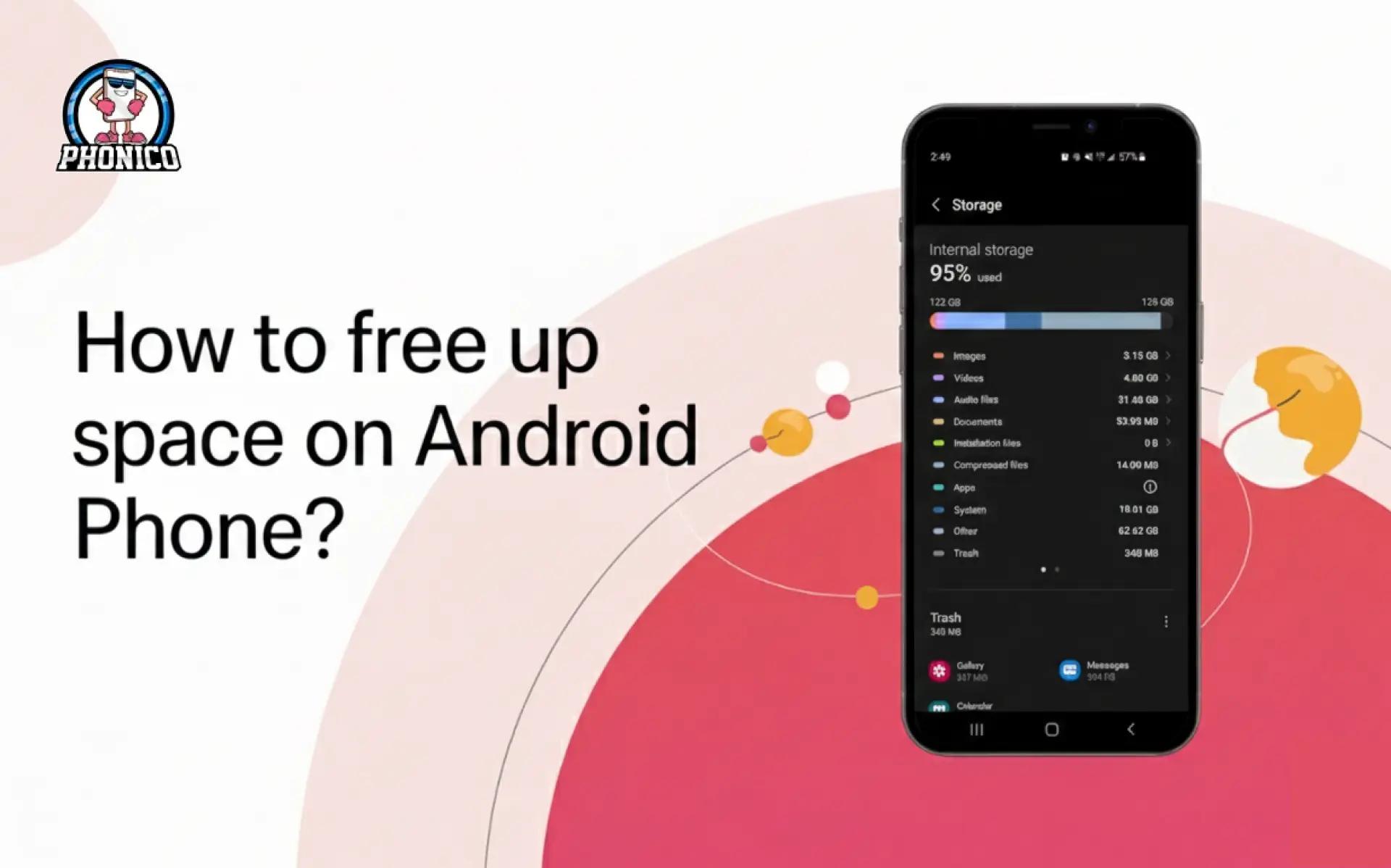
How Much Space Do You Actually Have?
You can evaluate how much space you actually have. Here are the steps you can follow according to your Android device model.
- Open your Android Settings app.
- Select Device care and click on Storage.
Ways to Free Up Space on Android Phones
1. Delete photos and videos from Android phones
Photos and videos fill up your device storage quickly. Duplicate selfies, blurry photos of walking in the park, and the photo of the old shipping notification of your dress all contribute to taking the space. Take a break and select such photos to delete.
- Open your Android phone's Gallery.
- Click the media file you want to delete. Or
- Press the photo for a few seconds to select it. Now, you can select multiple photos to delete.
- Click the Delete Button to remove all selected photos.
The deleted media files are transferred to the trash folder. You can also remove the files manually and clear the space.
2. Uninstall the Android apps
Check how many apps you have on your phone and confirm which you regularly use. Mobile apps take up lots of space on your phone. Thus, it's ideal to delete those you haven’t used for a long time. Here are the steps:
- Open the phone Settings.
- Click the Apps, and select the app you'd like to uninstall.
- Now tap the Uninstall button.
You can also delete the app from the home screen.
3. Free up storage via the Files app
File apps let you manage files and folders on your mobile phone. It lets you know the files currently stored on your Android. You can delete the media files and the documents from here.
Remove the Junk Files
Delete the temporary Junk File, which contains the leftover data from app installs, updates, or cached files. These contribute to taking the more space.
- Open the Files app.
- Click on the menu and click Clean.
- Scroll to the Junk Files and click Clean.
- Now, tap the Clear button.
Delete Old Downloads
You might have downloaded multiple PDFs to read, but never opened them again. These old downloaded documents take up your phone's space.
- Go to the Files app.
- Click the file you want to delete.
- Or long-press on one file, tap on multiple files to select.
- Click Delete.
4. Factory Reset Your Phone
If any of the above methods are not working to free up your phone space, you can go for the factory reset. But, before reset, don’t forget to back up photos, videos, apps, contacts, and documents. You can go through the following settings.
- Open the Settings app on your phone.
- Tap on System and click on the reset option.
SIM Trays Vs eSIM: What is Ideal for Phone Space and Performance?
Before the digital SIM technology, smartphones relied on the SIM slot and the internal routing space. Physical SIM cards take up a lot of space, which cannot be used for other functionalities. The SIM card requires a tray, a rubber seal, and the connectors, which contribute to taking up space.
An eSIM card is a tiny digital chip built into the device's motherboard. Like the physical SIM cards, it doesn’t take up a lot of space. Now the latest smartphones come with more space that lets users store more data.
Note: If you are looking for the best eSIM, Phonico is a reliable carrier offering eSIM data plans for travel to the USA. Compared to the other ordinary carriers, the provider offers unlimited talk and text services without any strict contract.
You buy the eSIM online and enjoy the seamless network connection. Phonico offers a top-up plan for travellers to refill the data plan easily.
Conclusion
Cleaning up the space on your Android is not complicated. You simply have to delete the unnecessary apps, duplicate photos, junk files, cache data, and old downloaded documents. You can also use the smart tools and long-term storage habits for enough space.
In the article, I have discussed each step in detail to help you get more space and improve your device performance.
FAQs
Why is my Android storage full even after deleting files?
Deleting the files is not enough to clear the space. You should remove the caches, system files, and update leftovers.
Does clearing the cache delete personal data?
No, cache data is not related to your personal data. It only deletes the temporary files in your phone.
How do I free up space without deleting apps?
You can clear app caches, delete large media files, or move data to cloud storage or an SD card.